 Vanta Panel
Two-Factor Authentication
Turn on TOTP two-factor authentication in vPanel or vWHM, save your eight single-use recovery codes, read the recent sign-ins log, and understand server-enforced 2FA policy.
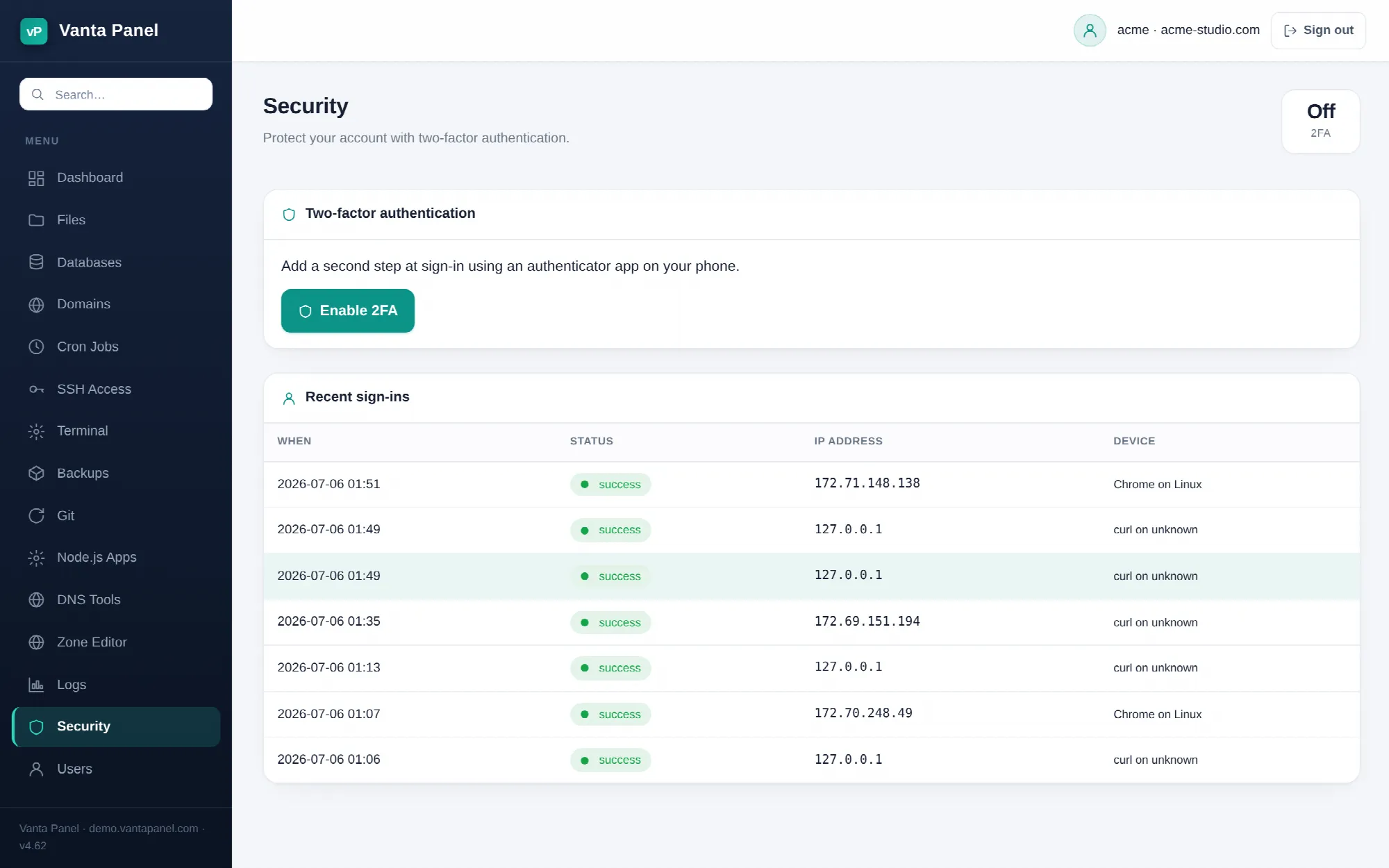 Two-factor authentication and recent sign-ins in vPanel.
Two-factor authentication (vPanel → Security, and vWHM → Security for administrators) adds a six-digit time-based code to your sign-in. Both panels use the same TOTP standard, so any authenticator app works — Google Authenticator, Authy, 1Password, and others.
Turning it on
- Open Security and click Enable 2FA.
- Scan the QR code with your authenticator app. If you cannot scan, the secret is printed next to it in groups of four characters and can be typed in by hand.
- Enter the six-digit code the app shows and click Confirm & enable.
The code is verified before anything is saved. If it does not match, nothing changes — the usual cause is a phone clock that has drifted out of sync.
Recovery codes
The moment 2FA is enabled the panel generates eight recovery codes and shows them once. They are not shown again, so save them somewhere outside the panel.
Each code works exactly once. When you use one to sign in, it is consumed and the remaining count on the Security page drops. That count is the only ongoing indicator you have — when it reaches zero, losing your authenticator means losing access.
You can issue a fresh set at any time with Regenerate recovery codes. Doing so requires a current authenticator code and invalidates every old code immediately.
Turning it off
Disable 2FA asks for a current authenticator code or one of your recovery codes. Either is accepted. Once disabled the secret and the remaining recovery codes are deleted, so re-enabling later starts from a new QR code and a new set of eight codes.
When your host requires it
The server administrator can require two-factor authentication for all admins, for all hosting accounts, or both, from vWHM → Settings → Security policy.
When the policy applies to you and you have not enrolled, every page you open redirects to the Security page with a notice. The Security page and its form stay reachable — that is deliberate, so you can actually complete enrolment — but nothing else in the panel opens until you do.
Recent sign-ins
Below the 2FA panel is a table of your last 15 sign-in events: date and time, outcome, source IP, and a short device label derived from the browser's user agent. Three outcomes are recorded:
| Status | Meaning |
|---|---|
| success | Password (and code, if 2FA is on) accepted. |
| failed | The password was wrong. |
| failed 2FA | The password was right but the code was not. |
A run of failed 2FA entries from an address you do not recognise means someone has your password. Change it, and keep 2FA on.
The panel keeps the 50 most recent events per user and discards older ones.
Brute-force throttling
Sign-in attempts are rate-limited by source IP, independently for the admin panel and for hosting accounts. After 8 failed attempts within 15 minutes from the same address, further attempts for that panel are refused until the window clears. This applies to wrong passwords and wrong 2FA codes alike.
Delegated logins
Extra logins created in the User Manager sign in as account+username. Delegated logins do not carry their own 2FA — the second factor belongs to the main account. A delegated login sees a reduced Security page offering only a password change, with a note pointing to the account owner.
Sessions
Signing in starts an idle clock. A vPanel session expires after 3 hours without a request; a vWHM admin session expires after 1 hour. Changing your password signs out every other live session for that user on its next request, while keeping the browser you changed it from signed in.