
Apache Kafka
How Vanta Panel installs a shared Apache Kafka broker, enables it per account with SCRAM logins and prefixed topics, and when a small VPS should skip it.
On this page 9 sections
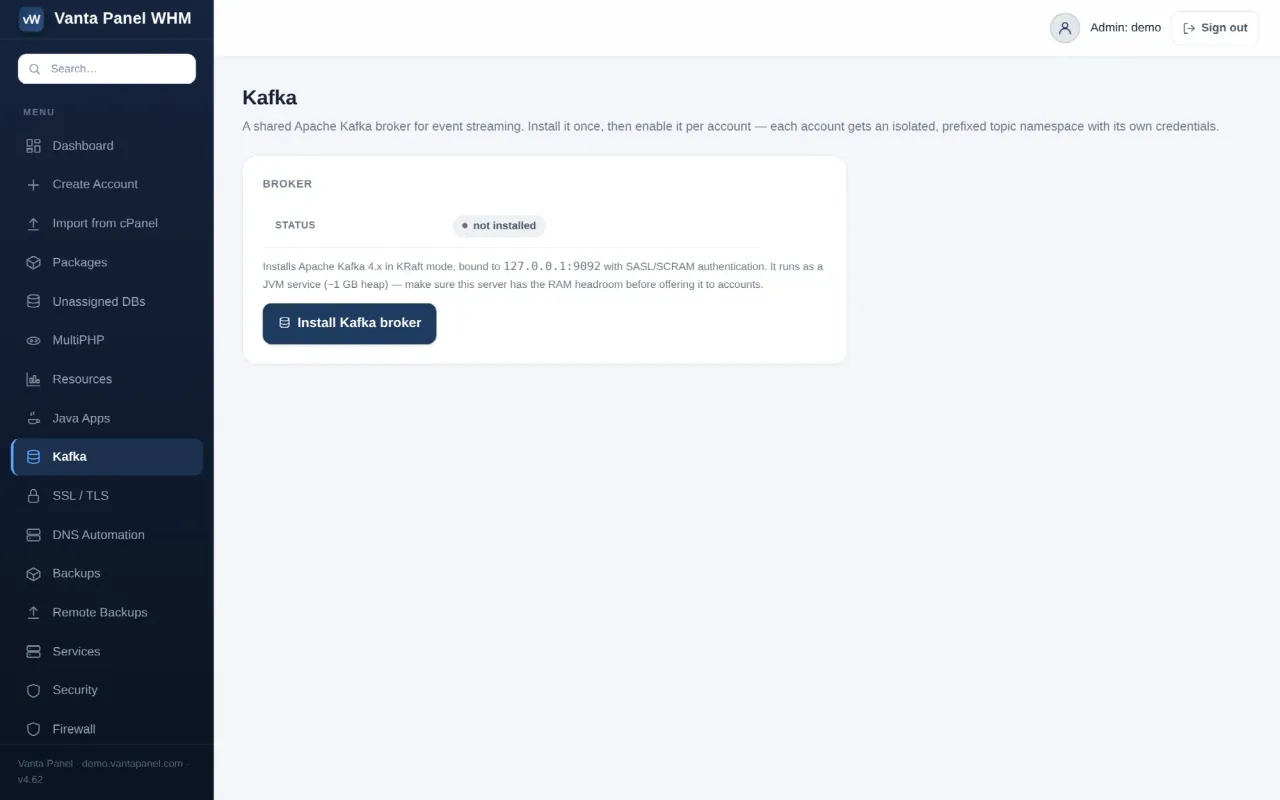
Vanta Panel runs one shared Apache Kafka broker per server — a single-node Kafka 4 in KRaft mode (no ZooKeeper), installed once from vWHM and switched on per hosting account. Each enabled account gets its own SCRAM login, its own youraccount. topic prefix, and a 1 MB/s cap in each direction. The broker listens on 127.0.0.1:9092 only, so it is for apps running on the same server: Java, Node.js and Python apps, or PHP with the rdkafka extension.
What the panel provisions
| Item | Value |
|---|---|
| Version | Kafka 4.x (4.3.1 today) |
| Mode | Single node, KRaft, combined broker and controller |
| Client listener | 127.0.0.1:9092, SASL_PLAINTEXT, SCRAM-SHA-256 |
| Files | /opt/kafka (software), /var/lib/vantakafka/logs (data) |
| Service | systemd unit vantakafka, enabled at boot, restarts on failure |
| JVM heap | -Xmx1G -Xms512M, fixed |
| Per account | user youraccount; ACLs on topics and consumer groups prefixed youraccount.; 1 MB/s produce and consume quotas |
| Topics | 1–50 partitions, replication factor 1, no auto-creation |
Prerequisites
- RAM headroom. About 1 GB of heap on top of Apache, MariaDB and mail — not for a 2 GB VPS, Vanta Panel's minimum; the vWHM page itself warns you to check.
- Java 17 or newer. The installer reuses any
javaon the server or adds the distribution's default headless JRE; activating Java first from vWHM → Java Apps (OpenJDK 17) is the safest order.
Installing the broker (vWHM)
- Open vWHM → Kafka (or the Apache Kafka tile on the dashboard). The Broker card shows Status not installed.
- Click Install Kafka broker. The panel downloads Kafka, writes its configuration, formats storage with a panel-only admin credential, and creates, enables and starts the
vantakafkaservice. You then see Kafka 4.3.1 installed and started on 127.0.0.1:9092.
Enabling an account
- Open vWHM → Accounts, open the account and find the Kafka (event streaming) card. If the broker is not installed yet, the card says so and links to the Kafka page.
- Click Enable Kafka → Kafka enabled for youraccount. This creates the SCRAM user, ACLs and quota; the vWHM Kafka page then lists the account under Accounts using Kafka with its topic count and a Manage link.
Disable Kafka revokes the credentials and ACLs; the account's topics stay on disk but are unreachable until re-enabled. Re-enabling generates a new password, so apps must be updated.
Using it from vPanel
- Open vPanel → Kafka. The page only appears in the sidebar once your account is enabled; otherwise it says Kafka isn't enabled for this account. Contact your administrator…
- The Connection panel shows
bootstrap.servers,security.protocol = SASL_PLAINTEXT,sasl.mechanism = SCRAM-SHA-256, your username (your account name) and password, plus a ready-made JAAS line for Java clients. - Under Create topic, type the Topic name — letters, numbers, dots, dashes and underscores; the
youraccount.prefix is added for you — choose Partitions (1–50) and click Create topic. You see Created topic youraccount.orders. - Your topics lists them; Delete removes a topic and all its messages after a confirmation.
For a Spring Boot app the properties are:
spring.kafka.bootstrap-servers=127.0.0.1:9092
spring.kafka.properties.security.protocol=SASL_PLAINTEXT
spring.kafka.properties.sasl.mechanism=SCRAM-SHA-256
spring.kafka.properties.sasl.jaas.config=org.apache.kafka.common.security.scram.ScramLoginModule required username="youraccount" password="…";
spring.kafka.consumer.group-id=youraccount.order-workers
The consumer group id must also start with your prefix — the ACL covers youraccount.* groups only.
Start, stop, status and logs
The vWHM Kafka page shows running or installed · stopped / failed, but has no start/stop buttons, and the Services page does not manage this unit. As root over SSH:
systemctl status vantakafka
systemctl restart vantakafka
journalctl -u vantakafka -n 200
Kafka's own log files are in /opt/kafka/logs; messages are kept for Kafka's default 7 days (the panel sets no override).
When not to use it
- Small VPS — 2 GB of RAM is not enough alongside the web stack.
- Clients elsewhere — the listener is loopback-only and unencrypted, and the panel cannot expose it.
- Durability or scale — one node, replication factor 1, no failover.
- A simple queue or cache — Redis is far lighter, and a cron job covers most scheduled work.
Troubleshooting
- Kafka install failed: could not download Kafka — outbound HTTPS is blocked; check the firewall.
- Status shows installed · failed right after install — run
java -version(Kafka 4 needs 17+) and readjournalctl -u vantakafkafor an out-of-memory kill. - Authentication failed — the password changes whenever Kafka is re-enabled for the account; copy the current one from vPanel.
- TopicAuthorizationException / GroupAuthorizationException — the topic or
group.idis not under youryouraccount.prefix. - Connection refused from another machine — by design; only apps on this server can connect.
- Producer seems slow — you are hitting the 1 MB/s quota; Kafka throttles rather than errors.
FAQ
Is Kafka per account or per server?
Vanta Panel runs one broker per server, shared; each account gets an isolated slice of it — its own login, prefix and quota.
Do I need ZooKeeper?
No. Kafka 4 runs in KRaft mode; the single node is its own controller.
Can I connect from my laptop or another VPS?
No. The broker binds to 127.0.0.1 and the panel does not add TLS or a public listener.
Something missing or out of date? Ask support, or try it yourself on the live demo.