
Websites and Domains
Manage every hostname on your account: the primary domain, subdomains and addon domains, each with its own document root, Apache vhost and free SSL certificate. Covers creating and deleting them, the DNS each one needs, and per-package domain limits.
On this page 7 sections
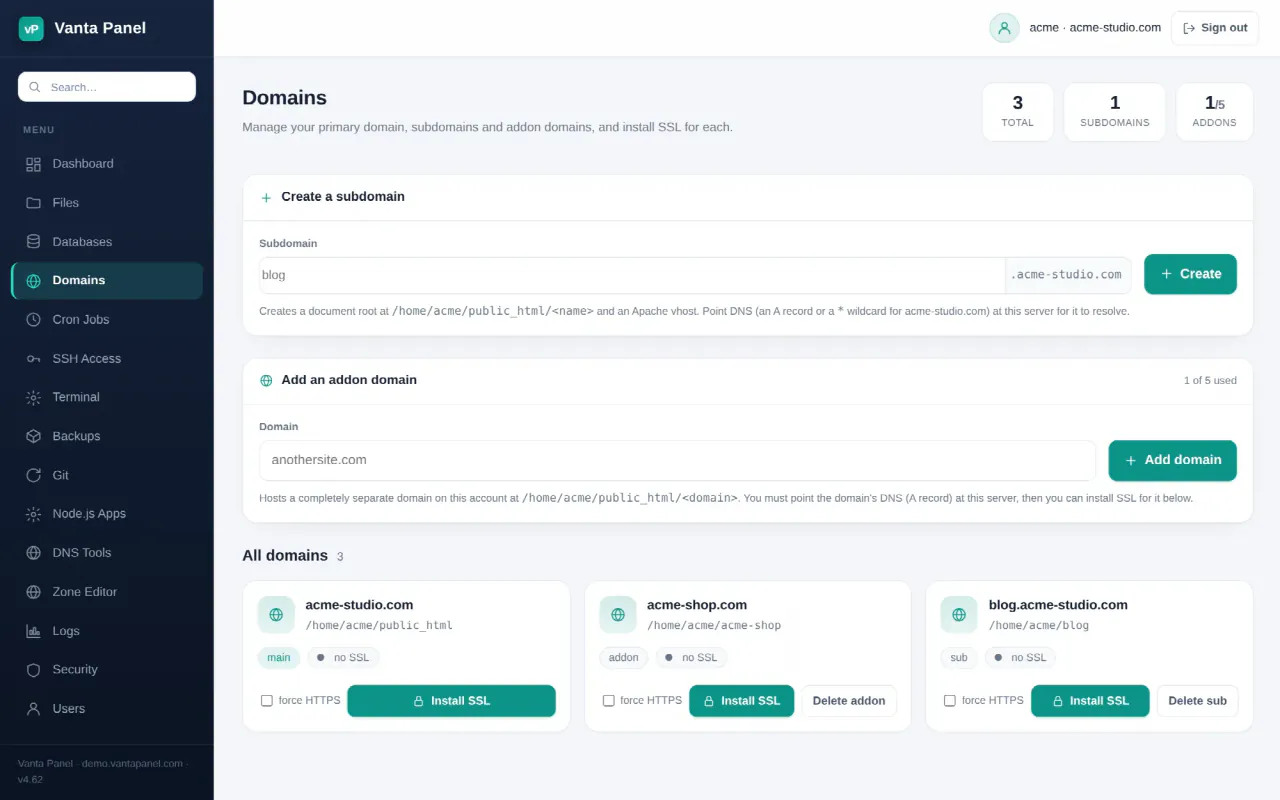
Domains (vPanel → Domains) is where every hostname on your account is created and secured. One hosting account can serve many websites: your primary domain, subdomains of it, and completely separate domains added on. Each gets its own document root, its own Apache vhost and its own SSL certificate.
The three kinds of domain
Primary domain — set when the account was created. Its document root is ~/public_html. It cannot be removed from this page.
Subdomain — a hostname under your primary domain, like blog.yourdomain.com. You enter just the label (blog); labels may be up to 42 characters of lowercase letters, numbers and hyphens. The document root created for it is ~/public_html/<label>.
Addon domain — an entirely separate domain hosted on the same account, like anothersite.com. The document root is ~/public_html/<domain> — the full domain name as the folder name.
Both subdomains and addon domains are created with a placeholder index.html so the hostname shows something rather than an empty directory, an Apache vhost with AllowOverride All (so your .htaccess works), DirectoryIndex index.php index.html index.htm, and their own Apache log files.
Creating a subdomain
Enter the label and press Create. Apache is reconfigured immediately, but that only makes the server ready — DNS still has to send visitors here. Either add an A record for blog.yourdomain.com pointing at this server, or a wildcard * A record for the whole domain so every subdomain you create resolves without a further DNS change. See the DNS Zone Editor.
Adding an addon domain
Enter the domain and press Add domain, then point the domain's A record at this server at your registrar or DNS host. Until DNS resolves here, nothing loads and SSL cannot be issued.
Two checks run before an addon domain is accepted:
- It must not already be hosted on this server by anybody.
- It must not overlap another account's domain tree — you cannot add a subdomain of a domain another customer hosts here, or a parent of one. This stops a customer shadowing a neighbour's website or hijacking their DNS zone.
If your hosting package sets an addon domain limit, this page shows how many of the allowance you have used and refuses to go past it. A subdomain limit is enforced in exactly the same way, but this page shows only the count — the allowance itself appears on your Dashboard. On a server without package limits, there is no cap.
SSL for each domain
Every domain in the list has its own SSL state, shown as a badge with the certificate's expiry date when one is installed.
Install SSL issues a free certificate for that hostname. Tick force HTTPS first if you also want HTTP requests redirected to HTTPS — the redirect is written so that Let's Encrypt's /.well-known/acme-challenge/ path stays reachable, which is what keeps automatic renewal working. Reissue does it again for a domain that already has a certificate, and Remove SSL drops it back to plain HTTP.
Issuing a certificate only works once DNS for that hostname resolves to this server, because the certificate authority verifies it by fetching a file over HTTP. A brand-new addon domain will fail validation until its DNS has propagated. Full detail is in SSL / TLS Certificates.
Deleting a domain
Delete sub and Delete addon remove the Apache vhost, and for an addon domain its SSL configuration as well. Your files are kept. The document root and everything in it stays in your home directory, so deleting a domain is not a way to free disk space — and re-adding the same domain later picks the existing folder back up.
What you can do per domain
Each hostname on your account is a first-class site, not a second-class alias. All of these work per domain:
- Redirects — forward a path or a whole domain elsewhere.
- Error Pages — custom 404, 403, 401 and 500 pages, chosen per domain.
- One-click app installers — install into a domain's folder.
- Node.js, Python and Java apps — serve an app on a domain of its own.
- SSL and the DNS Zone Editor.
Next steps
- SSL / TLS Certificates — free HTTPS in detail, including renewal.
- DNS Zone Editor — the records that point a domain here.
- File Manager — the folders behind each hostname.
Something missing or out of date? Ask support, or try it yourself on the live demo.