
Java Apps — Run a Spring Boot JAR as a Service
Run an executable JAR or a Spring Boot app as a managed service on a hosting account. Covers enabling Java, deploying a JAR, the systemd unit created, how the reverse proxy detects whether your app serves at the root or under a context path, and logs.
On this page 8 sections
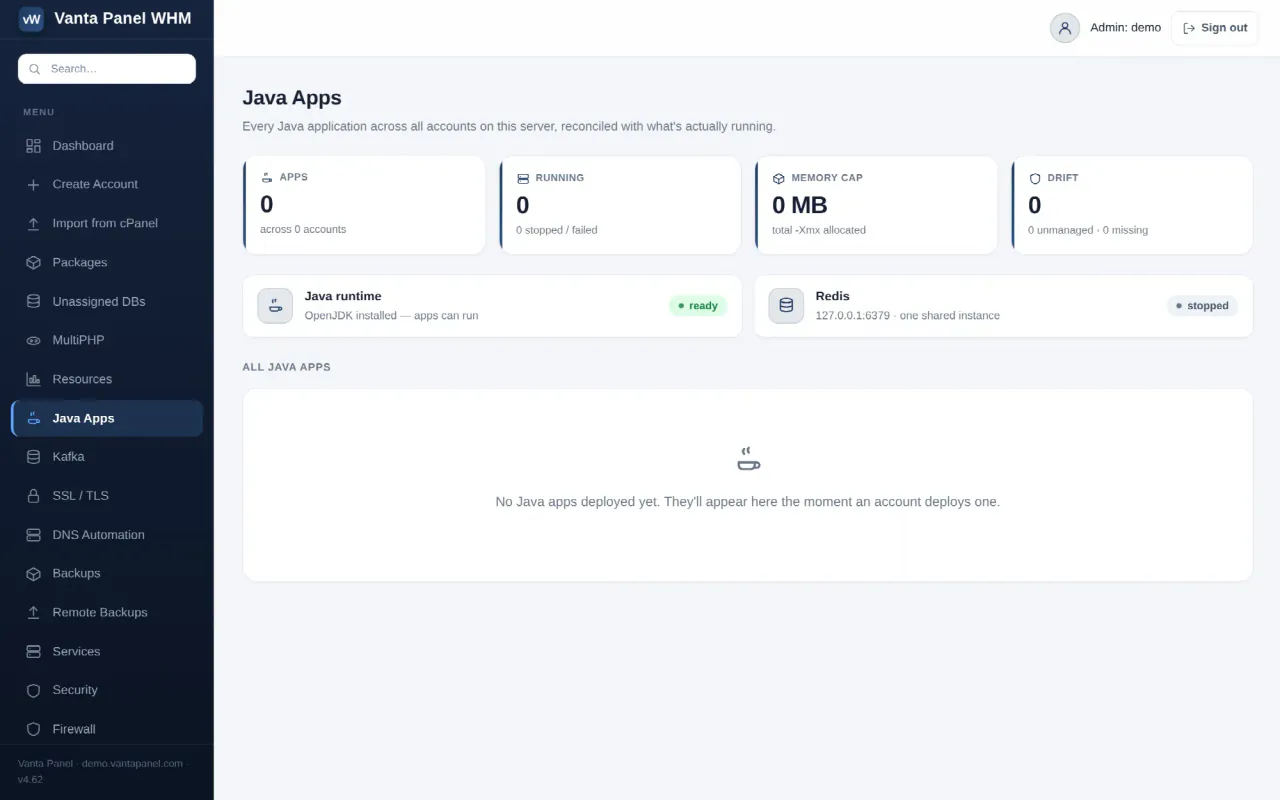
Java Apps runs an executable JAR — a Spring Boot application, or any java -jar program that serves HTTP — as a managed service on a hosting account. Customers deploy from vPanel → Java Apps; administrators see every Java app on the server from vWHM → Java Apps.
Your JAR has to be a long-running web server that listens on the port the panel gives it. A console program or a batch job starts, exits, and then shows as failed — that is the single most common surprise on this page.
Getting it switched on
Java is opt-in per account and needs two things before you can deploy:
- An administrator enables Java for your account in vWHM. Until then the vPanel page shows only a note telling you to ask them.
- The Java runtime is installed once on the server. If it is not there yet, the page offers an Activate Java button. It installs OpenJDK 17 (headless), falling back to the distribution's default headless JRE, and can take a minute.
Deploying an app
The JAR. Either upload a .jar through the form, or paste the path to a .jar that is already on the server — useful when you build on the box itself. A server-side path must resolve inside your own home directory and must actually end in .jar; anything else is refused. An upload must end in .jar, must start with the bytes PK (a JAR is a zip archive), and is capped at 250 MB.
There is a lower limit in the way on a default install: the vPanel service starts PHP with upload_max_filesize=64M and post_max_size=68M, so a bigger jar is thrown away before the panel ever sees it — and neither symptom mentions size. Between 64 MB and 68 MB the form comes back saying you did not choose a jar; above 68 MB the whole request is discarded and you get "Bad CSRF token. Go back and try again." Either ask your administrator to raise those limits (see File Manager) or put the jar on the server with SFTP or Git and paste its path instead, which has no size limit at all.
The file is copied to ~/java-apps/<app-name>/app.jar, owned by you, mode 0640.
App name — 1–32 characters of lowercase letters, numbers and hyphens, starting and ending alphanumeric. It has to be unique on your account.
Port — 1024 to 65535; the page suggests the next free one, starting from 8500. Ports 21, 22, 25, 80, 110, 143, 443, 465, 587, 993, 995, 2083, 2087 and 3306 are reserved and refused, as is a port already recorded against another app.
Memory — 32 MB to 8192 MB. Your value becomes the JVM's -Xmx, and systemd's hard MemoryMax is set 160 MB above it to leave room for the JVM's non-heap memory.
What gets created
A systemd unit at /etc/systemd/system/vantajava-<account>-<app>.service:
User=<your account>
WorkingDirectory=/home/<account>/java-apps/<app>
Environment=PORT=<port>
Environment=SERVER_PORT=<port>
ExecStart=/usr/bin/java -Xmx<mb>m -jar /home/<account>/java-apps/<app>/app.jar
Restart=on-failure
RestartSec=5
MemoryMax=<mb + 160>M
NoNewPrivileges=true
PrivateTmp=true
ProtectSystem=full
Both PORT and SERVER_PORT are set, which covers Spring Boot (SERVER_PORT) and the plain-PORT convention without you having to know which one your app reads. With autostart enabled the unit is enabled too, so the app returns after a reboot.
Exposing the app
Three options, the same as for Node.js and Python apps.
A URL path on your site (/app) is the interesting one, because Java apps disagree about whether they serve at the root or under a context path. Vanta Panel handles both without asking you:
- The path is passed to the JVM as
-Dserver.servlet.context-path=/app, which a Spring Boot app honours without a rebuild. - After starting, the panel probes the running app for up to about 20 seconds — asking both
http://127.0.0.1:<port>/app/andhttp://127.0.0.1:<port>/— to find out where it actually answers. - If the app serves under its context path, the proxy keeps the prefix:
/app/→:<port>/app/. If it serves at the root (a plain JAR that ignored the property), the proxy strips it:/app/→:<port>/.
The resulting proxy fragment is written to /etc/apache2/vantajava/<account>/<app>.conf and included from every one of your account's vhosts, so the path works over HTTP and HTTPS and on all your hostnames.
Its own domain writes a dedicated vhost at /etc/apache2/sites-available/vantajava-<account>-<app>.conf proxying / to the app, with its own Apache logs. That vhost listens on port 80, so point the domain's DNS at this server first.
Neither leaves the app running with no public route — right for a background job or something you proxy yourself.
Every proxy change is verified with apache2ctl configtest and rolled back if it fails, so a Java app can never take your website down with it.
Running it
Start, stop and restart from the app's row. Logs shows the last 200 lines of the service journal — your application's own stdout and stderr, which for Spring Boot means the whole startup banner and any stack trace.
App names are unique per account and the deploy form refuses a name you already use, so there is no in-place redeploy here. To ship a new build, remove the app and deploy it again under the same name — the folder and the previous app.jar are simply overwritten — or deploy the new build under a second name and remove the old one once you have checked it. Removing an app stops it, disables it, deletes the unit and removes its proxy configuration.
Redis
If your administrator has enabled Redis for your account, the Java Apps page shows its status and connection details. Apps connect to 127.0.0.1:6379 with no password — the server binds Redis to loopback only, so nothing outside the machine can reach it. See Redis Caching.
The administrator's view
vWHM → Java Apps lists every Java application across all accounts and reconciles two sources of truth: the apps recorded in the panel's database, and the systemd units actually present on disk. That means it surfaces the awkward cases rather than hiding them — a unit running that the panel has no record of (hand-deployed or left over from a test), and a panel record whose unit has gone. Each app shows its account, state, port and where it serves, with per-app log access.
Related
- Node.js App Hosting — the same service model for Node.
- Python App Hosting — FastAPI, Flask and Django.
- Apache Kafka and Redis Caching — the backing services Java apps most often want.
Something missing or out of date? Ask support, or try it yourself on the live demo.