 Vanta Panel
Email Filters
Sort incoming mail per mailbox: match From, To, Subject or the message body, then move to a folder, forward or delete. First match wins, filters run before your autoresponder, and they only affect newly delivered mail.
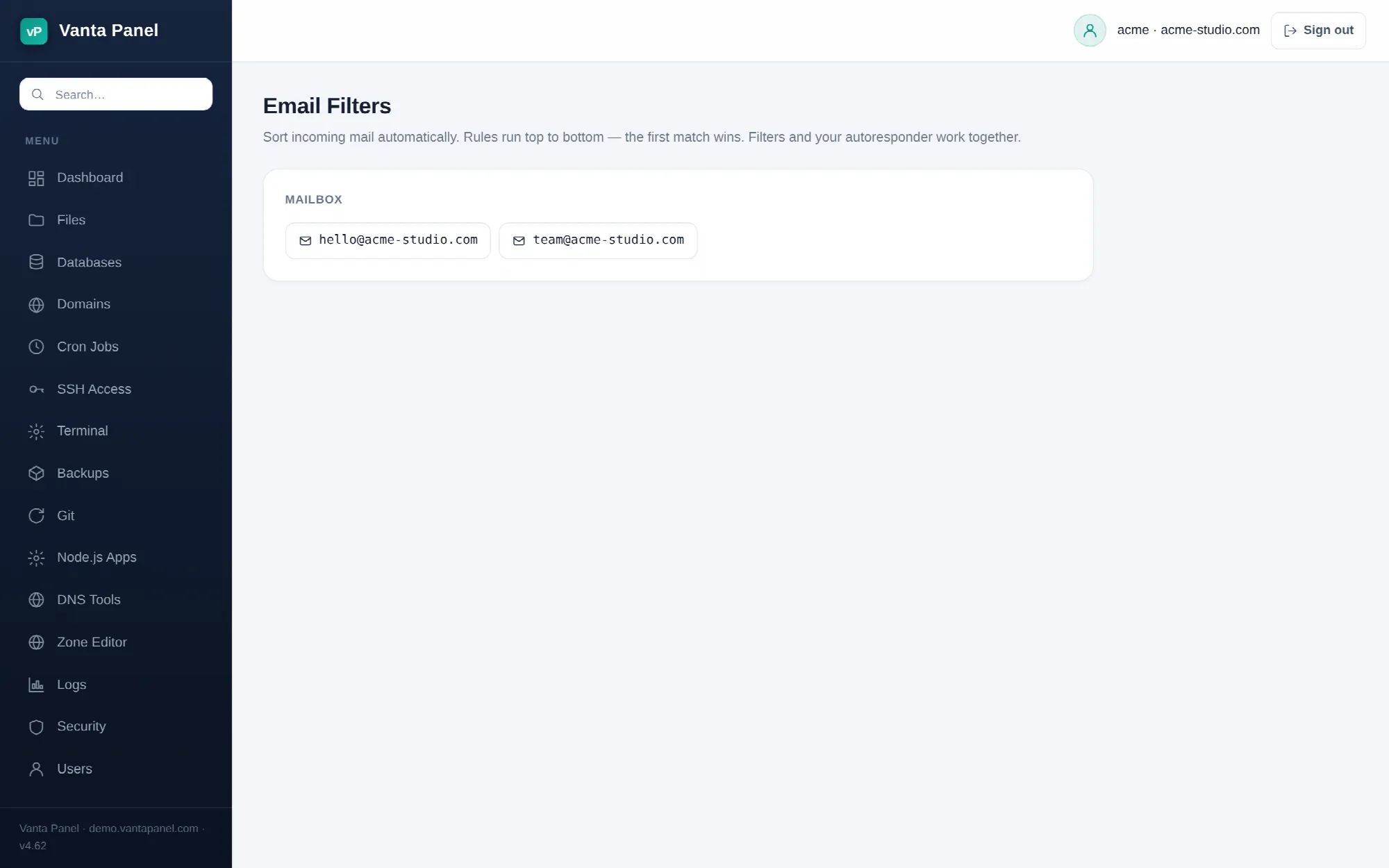 Per-mailbox filter rules in vPanel.
Email Filters (vPanel → Email Filters) sorts incoming mail automatically: file it into a folder, forward it somewhere, or delete it before it reaches your inbox. Rules belong to a single mailbox, so pick a mailbox at the top of the page first.
Filters run on the mail server as it delivers each message, so they apply no matter which client or device you use — and they only ever affect new mail. Existing messages already in the mailbox are not touched.
Building a rule
A rule is one condition and one action.
If — what to match on:
| Match on | Match type | Text |
|---|---|---|
| From, To, Subject or Message body | contains, is exactly or starts with | 1 to 128 characters |
Then — what to do:
- Move to folder — file the message into a folder. The name may contain letters, digits, spaces,
.,_,/and-, up to 64 characters, and must begin with a letter or digit. The folder has to exist already. The rule does not create it and the mail server is not configured to create missing folders while delivering, so a rule aimed at a folder that does not exist yet leaves the message in your Inbox instead. Create the folder in webmail or your mail app first, then add the rule. - Forward to — send the message on to another address. Must be a valid email address.
- Delete it — discard the message. There is no copy and no trash; it is gone.
The panel validates the rule before saving and tells you exactly what is wrong if it will not accept it.
First match wins
Rules are evaluated top to bottom and processing stops at the first rule that matches. A message that matches rule 1 is never considered by rule 2. Put your most specific rules first and general catch-alls last.
New rules are appended to the end of the list. There is no drag-to-reorder: to change the order, delete the rules and add them back in the order you want. The whole script is regenerated from your current rule list on every add and delete, so nothing is left behind.
Filters run before your autoresponder
Your autoresponder is part of the same delivery script and runs after the filters. Because every filter rule stops processing when it matches, mail caught by a filter never reaches the auto-reply. If you have an out-of-office message on a mailbox and also file support mail into a folder, the filed mail will not be acknowledged. That is usually what you want; when it is not, narrow the rule.
What the match types actually do
Knowing how the rules are translated saves guesswork:
- contains and is exactly compare against the header —
From,ToorSubject— as the sender wrote it. Matching is case-insensitive. - starts with matches from the beginning of the header value, so
InvoicematchesInvoice 4021but notYour Invoice. - Message body searches the text of the message. It is slower than a header match and can be fooled by HTML mail whose visible text differs from its markup, so prefer a header match where one will do.
- There is no regular-expression option and no way to match an arbitrary header. If you need to match something else,
Subjectplus contains solves most of it. - One quirk of starts with: it is built with Sieve's
:matchestest, so*and?in your own text act as wildcards there —*for any run of characters,?for a single one. contains and is exactly take your text literally.
Useful rules
- File newsletters — From contains
newsletter@→ Move to folderNewsletters. - Separate receipts — Subject contains
Receipt→ Move to folderReceipts. - Route a shared address — To contains
billing@→ Forward to your accountant. - Catch tagged spam — Subject contains
[SPAM]→ Move to folderJunk, if your server's spam filter tags subjects.
Deleting a rule
The × button on a row removes it and re-applies the remaining rules straight away. Mail already filed into a folder by the deleted rule stays where it is — the filter decided where the message went at delivery time, and nothing moves it back.