
SSL / TLS Certificates
Free Let's Encrypt certificates in Vanta Panel: server-wide HTTP or Cloudflare DNS validation in vWHM, one-click issuance per domain in vPanel, force HTTPS, automatic renewal and trusted mail SSL.
On this page 7 sections
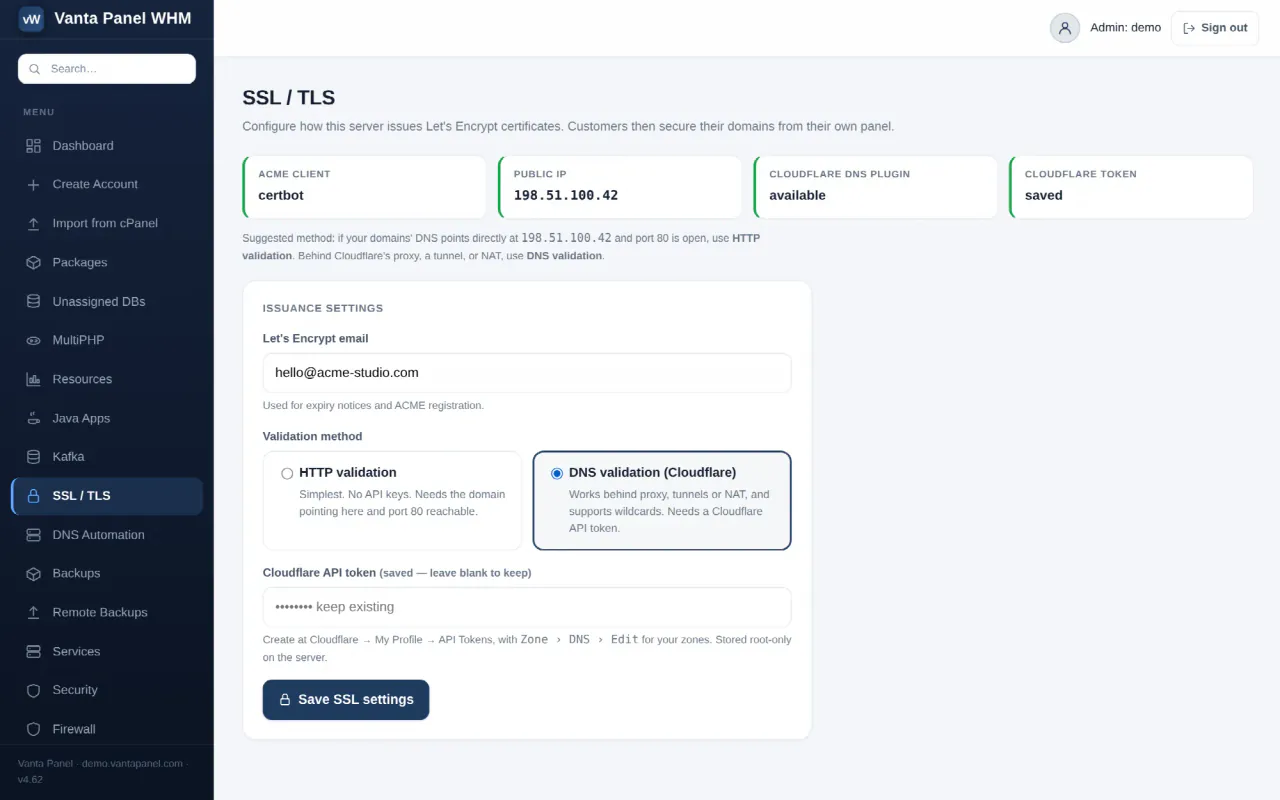
Vanta Panel issues free Let's Encrypt certificates. The work is split in two: the administrator configures how the server obtains certificates once, in vWHM → SSL / TLS; each account then secures its own domains with one click from vPanel → Domains.
Part 1 — Server configuration (vWHM → SSL / TLS)
The four chips across the top of the page are a readiness check:
| Chip | What it means |
|---|---|
| ACME client | certbot or acme.sh was found on the server. If neither is present, no certificate can be issued — install certbot. |
| Public IP | The address the server detected for itself. |
| Cloudflare DNS plugin | Whether certbot's Cloudflare DNS plugin is installed. Required for DNS validation. |
| Cloudflare token | Whether an API token has been saved. |
Below them, two settings:
Let's Encrypt email — used for ACME registration and expiry notices. Required.
Validation method — how Let's Encrypt proves you control the domain:
- HTTP validation is the default and needs no API keys. Certbot writes a challenge file into the site's document root, so it requires the domain's DNS to point directly at this server and port 80 to be reachable from the internet.
- DNS validation (Cloudflare) proves ownership through a temporary DNS record instead. Use it when the site sits behind Cloudflare's proxy, a tunnel, or NAT — anywhere the challenge file cannot be fetched — and when you need wildcard certificates. It needs a Cloudflare API token with
Zone › DNS › Edit, created at Cloudflare → My Profile → API Tokens. The token is stored root-only on the server and is shared with the DNS Automation and Zone Editor features. After writing the challenge record, the panel waits 30 seconds for propagation before asking Let's Encrypt to verify.
Leave the token field blank when re-saving to keep the token already stored.
Part 2 — Securing a domain (vPanel → Domains)
There is no separate SSL page in vPanel. Every domain card on the Domains page carries its own certificate state and controls, and the dashboard's SSL/TLS Status tile links there.
Each card shows either an SSL pill with the expiry date, or no SSL. The buttons are:
- Install SSL — obtain and install a certificate.
- force HTTPS — a checkbox next to the button. Tick it before installing to also rewrite the plain-HTTP site so every request redirects to
https://. - Reissue — request the certificate again. Use this after changing the validation method, or to add
wwwcoverage to an older certificate. The force-HTTPS checkbox applies here too, so this is how you turn the redirect on or off later. - Remove SSL — delete the HTTPS site configuration. The domain falls back to plain HTTP.
Main domains, subdomains and addon domains each get their own certificate, so every site on the account is independently secured.
What happens when you click Install
- The panel asks the ACME client for a certificate covering both
example.comandwww.example.com. - If that fails — usually because
wwwdoes not resolve, which is a perfectly normal setup — it retries with the bare name alone, so the site still gets HTTPS rather than failing outright. - A
:443virtual host is written pointing at the new certificate and the site's document root, andmod_sslis enabled. - If force HTTPS was ticked,
mod_rewriteis enabled and the:80virtual host is rewritten to redirect. - Apache's configuration is tested. If the test fails, everything is rolled back — the new site is disabled, the previous HTTP configuration is restored, and the change is reported as failed. A bad certificate cannot take your site offline.
- Apache is reloaded.
Renewal
Renewal is automatic and needs no action. Certbot's own scheduled renewal handles it, and Vanta Panel installs a deploy hook at /etc/letsencrypt/renewal-hooks/deploy/ that reloads Apache whenever a certificate is renewed, so the new certificate is picked up without manual intervention.
Certificates are requested with --keep-until-expiring, so reissuing a certificate that is still fresh reuses it rather than burning a Let's Encrypt rate limit — with one exception: adding www to a bare-name certificate expands it rather than reusing it.
Trusted mail SSL
The Trusted mail SSL — all domains card issues a single certificate covering mail.<domain> for every account on the server, so IMAP, POP and SMTP clients — Gmail, Outlook, phones — connect over SSL with no certificate warning.
New accounts are added to it automatically on creation. Run Sync trusted mail SSL now manually after a DNS change or a cPanel import. The card then reports how many domains are covered, whether the certificate was re-issued, and lists any that were skipped. A domain is skipped when mail.<domain> does not resolve to this server — behind Cloudflare that means the mail record must be grey-cloud (DNS only), because a proxied record cannot pass HTTP validation.
A certificate for the panel itself
If you installed the panel by IP address it uses a self-signed certificate, and browsers warn on first visit. To get a trusted certificate for the panel's own hostname, point the hostname's A record at the server and run:
sudo certbot --apache -d server.yourdomain.comAdd more -d flags for extra hostnames. Certbot renews it along with everything else. Behind Cloudflare, proxy the record and set SSL/TLS mode to Full (strict) — never Flexible, which causes redirect loops.
Related
- Websites and Domains — adding the domains you then secure
- Zone Editor — the DNS records validation depends on
- Troubleshooting — Cloudflare 522 errors and redirect loops
Something missing or out of date? Ask support, or try it yourself on the live demo.