 Vanta Panel
Disk Usage — See What Fills Your Quota
See how much of your quota you are using and which top-level folders are responsible, with a practical order for reclaiming space — and why your databases are not counted on this page.
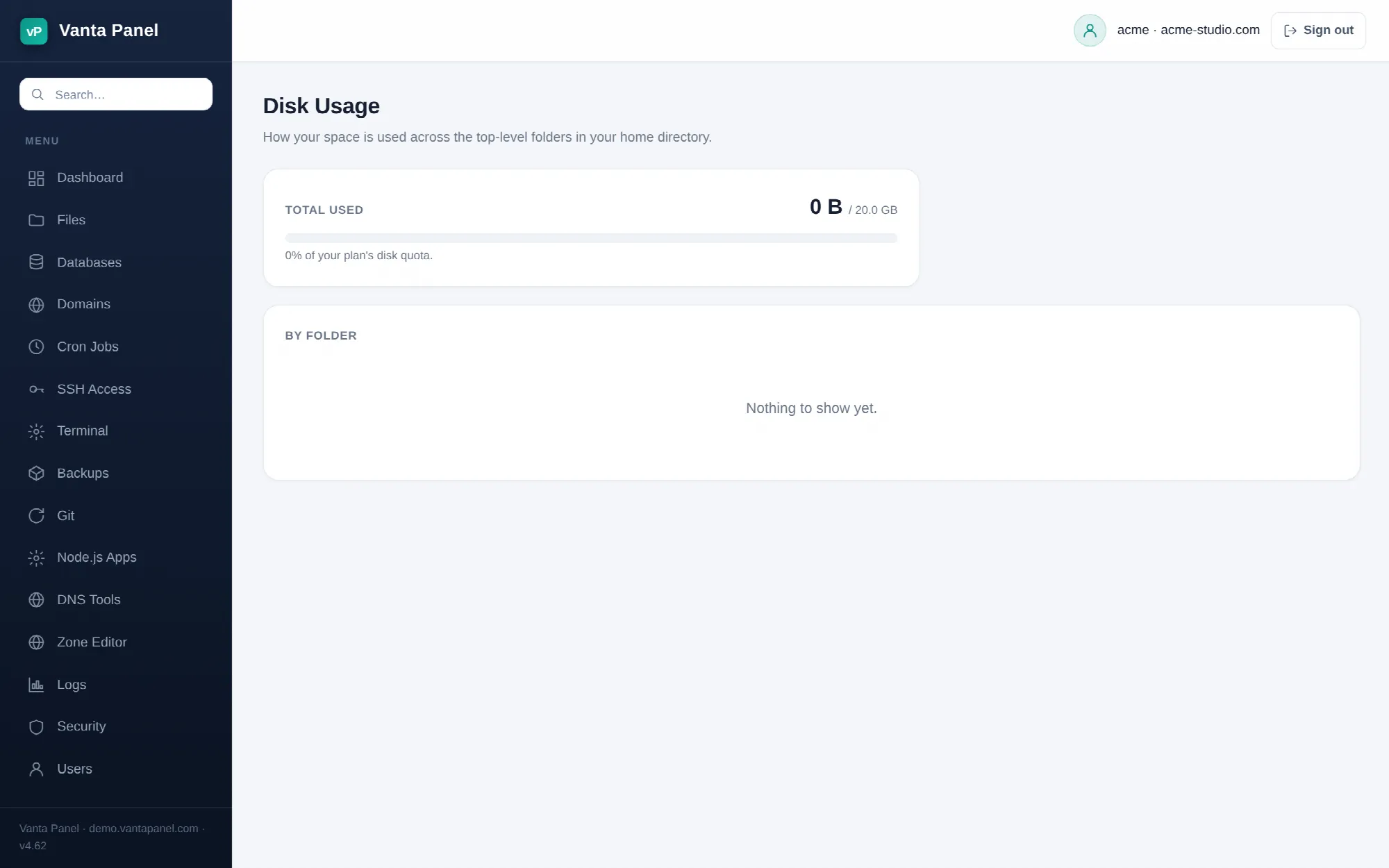 Disk usage broken down by top-level folder in vPanel.
Disk Usage (vPanel Dashboard → Files → Disk Usage) shows how much space your account is using and which top-level folders in your home directory are responsible. Use it when you are near your quota and need to know what to delete before you start deleting things.
Total used
The top card shows your total usage. If your hosting plan has a disk quota, it also shows the limit, a bar, and the percentage used — the bar is green up to 70%, amber above 70%, and red above 90%.
The total is measured on the actual files in your home directory, so it reflects reality rather than a cached figure. On a large account the page takes a moment to load for that reason.
By folder
Below that, every top-level folder in your home directory is listed largest first, with a bar showing its share relative to the biggest one and its size on the right.
The folders you will usually see, and what they mean:
public_html— your website. Normally the biggest entry. If it is unexpectedly large, the cause is almost always user uploads or a plugin cache.mail— your mailboxes. Mail is stored in your home directory, so a large mailbox counts against your disk quota exactly like a large file does. This is the entry people are most often surprised by.backups— archives created by the Backups page, plus any database-only dumps inbackups/db. Each full backup is roughly the compressed size of everything else you own, so a few copies add up fast.tmpand.cache— working files and caches written by your applications. Mostly regenerable..trash— files deleted through the File Manager. Still occupying space until it is emptied.
Only public_html is created for you when the account is made; the rest appear as you use the features that need them.
Finding the space to reclaim
Work down the list in order:
backupsfirst. It is the easiest win and the least risky. Download the archives you want to keep, delete them from the server, and lower your keep count. Note the panel keeps a minimum of three full backups, so lowering the number below that has no effect..trashnext. Empty the File Manager's trash. Those files are already deleted as far as you are concerned.- Then
mail. Large attachments in old mail are often the single biggest recoverable chunk. Delete them from your mail client and empty its Trash and Junk folders — mail is only reclaimed once it leaves those. - Then caches. Most CMS and framework caches live under
public_htmland rebuild themselves. Clear them from the application rather than deleting directories by hand. - Only then real content. Old media, unused themes and plugins, forgotten staging copies under
public_html.
Use the File Manager to drill into whichever folder the list points at — this page stops at the top level, so it tells you which folder, not which file inside it.
What is counted, and what is not
- The breakdown covers only your home directory, so nothing you put outside it appears here.
- Your databases are not included. MySQL data lives outside your home directory. Database sizes and the total across your databases are shown on the Databases page instead, and your dashboard shows a MySQL disk usage figure alongside it. Both together are your real footprint.
- Sizes are actual file sizes rather than blocks on disk, so a directory of many tiny files uses slightly more real disk than the number here suggests.
One difference worth knowing: this page counts everything in your home directory, including backups, .cache and .trash. The account-size figure used elsewhere for quota checks excludes all three, because they are either already-deleted files or regenerate themselves. (The free-space check a scheduled backup runs first is not as generous: it excludes backups and nothing else.) So the number here can be legitimately higher than the size reported for your account elsewhere in the panel.
Related pages
- File Manager — find and remove the large files inside a folder.
- Backups — retention settings, and how much space archives take.
- Databases — database sizes, which this page does not count.