 Vanta Panel
Admin Access Control (vWHM)
Protect the vWHM administrator login: password changes, two-factor authentication, an IP allow-list for the whole admin panel, sign-in history, and how to recover if you lock yourself out.
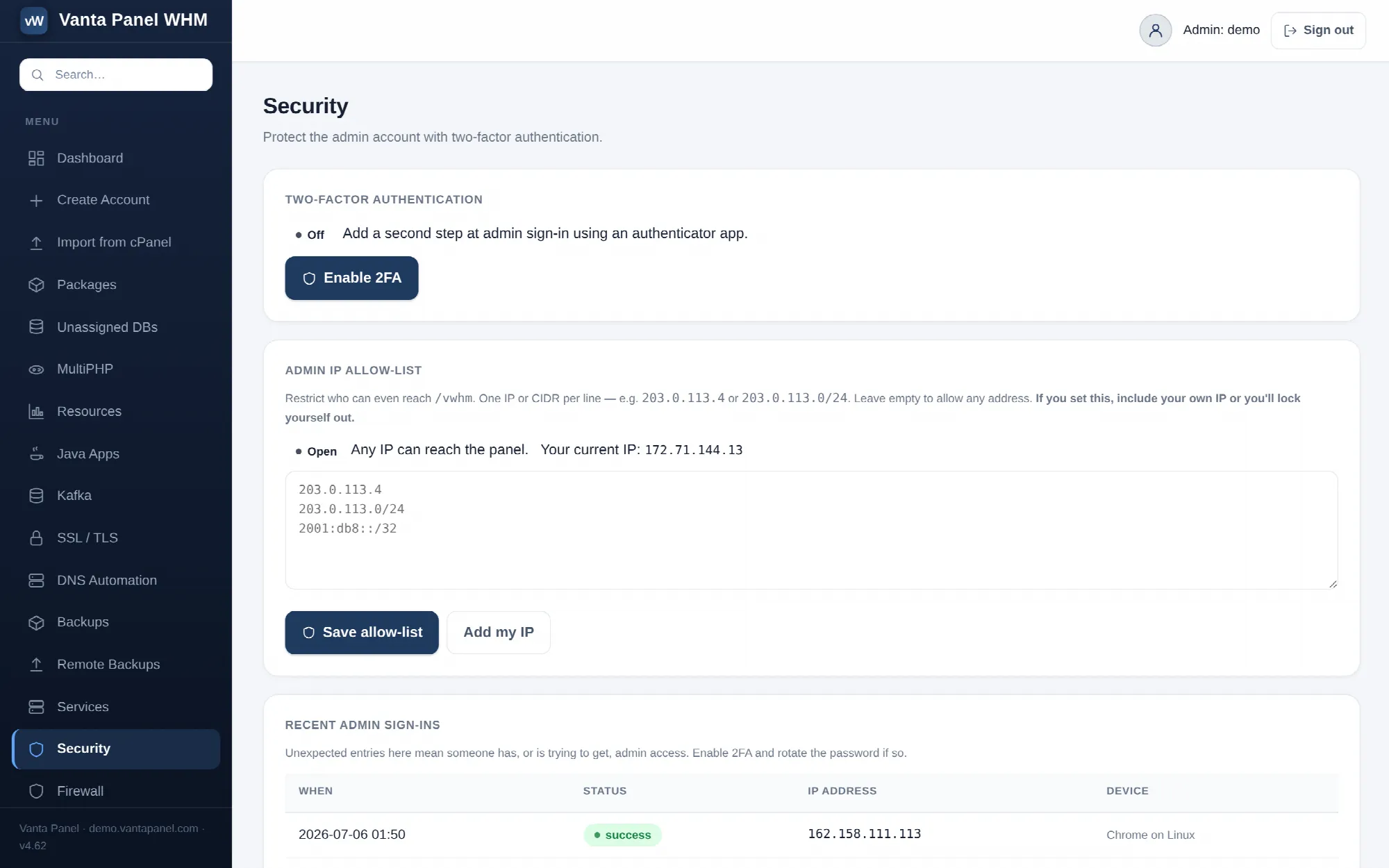 Admin password, two-factor and the IP allow-list in vWHM.
Security (vWHM → Security) protects the administrator login itself. It is a different page from the security tools a hosting customer sees — nothing here touches customer sites. It has four parts: your password, two-factor authentication, an IP allow-list for the whole admin panel, and a log of recent admin sign-ins.
Your admin password
Change the password you use to sign in to vWHM. The new password must be at least 8 characters and be confirmed twice.
If two-factor authentication is already enabled on your admin account, the form also asks for a current authenticator code — or a recovery code — and refuses the change without one. That prevents someone who has walked up to an unlocked session from locking you out.
Changing the password signs out every other admin session on its next request. The browser you changed it from stays signed in. The change is written to the audit log as admin.password_change.
This is the admin's own password. To reset a hosting account password, use vWHM → Accounts → the account → Login & password.
Two-factor authentication
Standard TOTP, with eight single-use recovery codes shown once at enrolment. Enabling, regenerating codes and disabling all work exactly as they do for hosting accounts — see Two-factor authentication for the full walkthrough.
Two details are specific to the admin panel:
- The account label in your authenticator app is
<username> (WHM), so it is distinguishable from a hosting-account entry on the same server. - If the server's security policy requires 2FA for admins (vWHM → Settings), an admin who has not enrolled is redirected to this page on every request until they do. The Security page and its form stay reachable so enrolment is possible.
Admin IP allow-list
The allow-list restricts which addresses can reach /vwhm at all. It is checked before the login form is rendered and before any authentication runs, so a disallowed address never sees a password prompt — it gets a plain 403 page naming its own IP.
Enter one IP or CIDR per line:
203.0.113.4
203.0.113.0/24
2001:db8::/32
Leaving the box empty is the default and means any address may reach the panel.
Two guards make this safe to use:
- Every entry is validated on save. A malformed entry aborts the whole save with an error naming it, rather than being quietly dropped.
- A list that does not cover your current address is refused outright. The page shows the IP it sees you from, and an Add my IP button appends it for you.
Clear (open to all) removes the restriction again.
If you lock yourself out anyway
The guard only checks the address you are connecting from at the moment you save. A dynamic residential IP that changes overnight will lock you out. Recovery is a single SQL statement on the server:
UPDATE settings SET v='' WHERE k='whm_ip_allowlist';Run it against the panel database — the credentials are in /opt/vantapanel/lib/config.php on the server, or via sudo mysql as root. The panel is reachable from any address again immediately.
If you are on a changing IP, put your VPS provider's console or a stable jump host in the list rather than your home connection.
Recent admin sign-ins
The last 15 admin sign-in events for your username: time, outcome (success, failed, failed 2FA), source IP, and a device label. Entries you do not recognise mean someone has, or is trying to get, admin access — enable 2FA and rotate the password.
Sign-in attempts against the admin panel are throttled per source IP: after 8 failures in 15 minutes further attempts are refused until the window clears. The admin panel and the customer panel are throttled separately, so a customer being locked out does not affect you.
An admin session also expires after 1 hour of inactivity.
Related server-side controls
- vWHM → Settings → Security policy turns on mandatory 2FA for admins, for accounts, or both.
- vWHM → Firewall manages the ufw rules and fail2ban bans that stop traffic before it reaches Apache.
- vWHM → Audit records every privileged action, including the password change made on this page.
- vWHM → API Tokens issues scoped tokens; a leaked token is its own way in, so revoke tokens as well as rotating passwords when you suspect a compromise.