
SSH Access — Authorize Keys for SSH & SFTP
Authorize SSH public keys for your hosting account in vPanel. Accepted key types, SHA-256 fingerprints, how to connect, and what happens when your host disables shell access.
On this page 6 sections
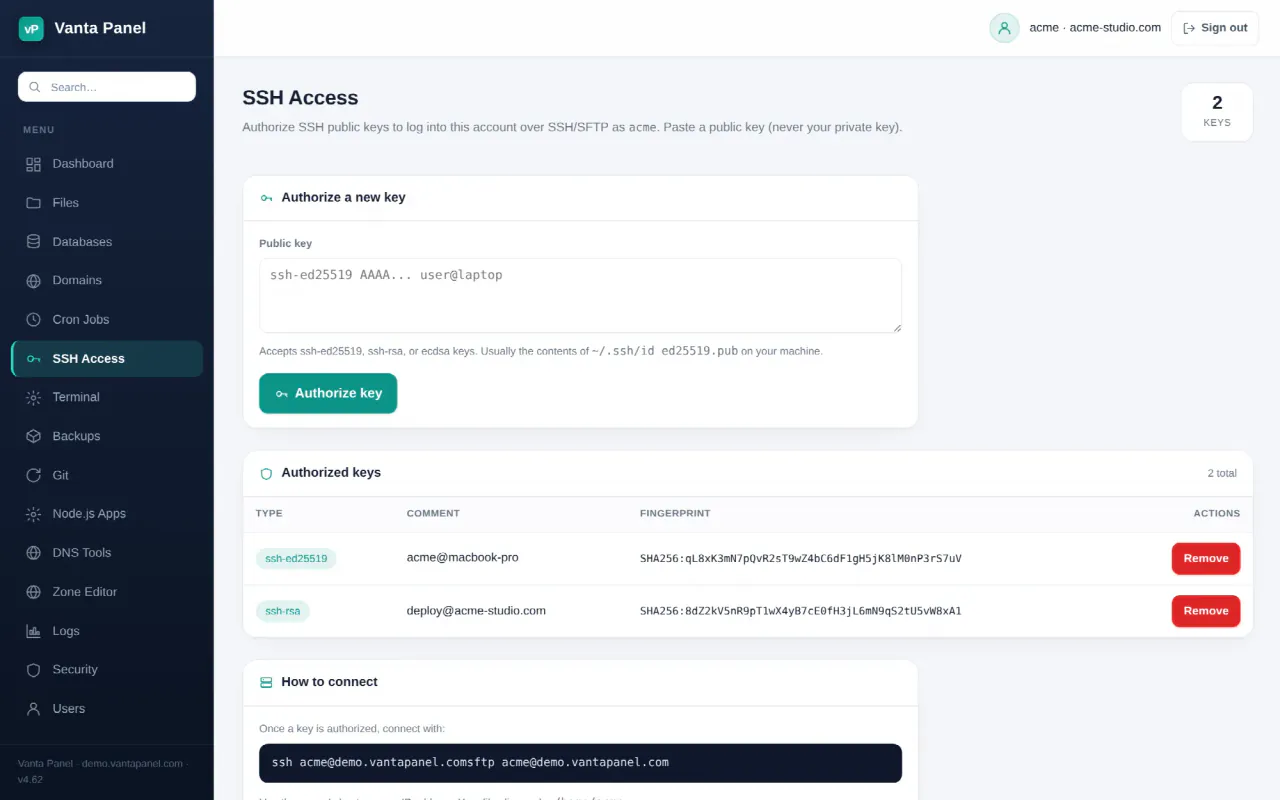
SSH Access (vPanel → SSH Access) manages the public keys that are allowed to log into your hosting account over SSH and SFTP. Vanta Panel does not generate keys for you — you create a key pair on your own machine and paste the public half here.
Authorizing a key
Paste the whole one-line contents of your public key file into the box and click Authorize key. On most machines that file is ~/.ssh/id_ed25519.pub:
cat ~/.ssh/id_ed25519.pubNever paste the private key — the file without the .pub suffix. If you do not have a key pair yet:
ssh-keygen -t ed25519 -C "you@laptop"Accepted key types
The key must begin with one of these, followed by the base64 blob and an optional comment:
ssh-ed25519— the modern default, and what you should usessh-rsaecdsa-sha2-nistp256,ecdsa-sha2-nistp384,ecdsa-sha2-nistp521ssh-dss— accepted, but obsolete and refused by most current OpenSSH builds
Anything else is rejected with "that does not look like a valid SSH public key". Whitespace inside the pasted key is normalised, so a key that wrapped across lines in your terminal still works.
Adding a key that is already authorized is refused rather than duplicated.
The list of authorized keys
Each key is shown with its type, its comment (the trailing you@laptop part, if present) and its SHA-256 fingerprint — the same fingerprint your own SSH client prints:
ssh-keygen -lf ~/.ssh/id_ed25519.pubCompare the two before removing anything, because the comment is free text and is not a reliable identifier.
Remove deletes that key from authorized_keys immediately. The device holding the matching private key can no longer log in. Existing connections are not killed.
Connecting
Once a key is authorized:
ssh youraccount@your-server
sftp youraccount@your-server
Use the server's hostname or IP address. You land in your account home, /home/youraccount. The page prints the exact commands with your own username and host filled in.
Key-based login is separate from your password. Changing your password on the Change Password page does not revoke authorized keys — remove them here instead.
Where the keys are stored
Keys are written to ~/.ssh/authorized_keys inside your account, owned by your account user, with ~/.ssh at mode 0700 and the file at 0600. The panel writes the file as your own user and refuses to write through a symlinked .ssh directory or authorized_keys file.
You can edit that file directly over SSH if you prefer; the page reads whatever is actually there, so hand-added keys show up in the list.
When SSH is turned off
The server administrator can disable SSH for an individual account from vWHM → Accounts → the account → SSH / shell access. When it is off:
- The account's login shell is set to
nologin, so SSH and SFTP logins fail. - The SSH Access and Terminal pages disappear from the panel navigation. Opening the SSH page directly shows a notice telling you to contact your administrator.
File Manager, cron jobs, Git and application hosting keep working — only interactive shell and SFTP access is withdrawn.
Related
Something missing or out of date? Ask support, or try it yourself on the live demo.