 Vanta Panel
Panel Settings and Server Alerts
Configure vWHM branding and accent colours, the support contact, the two-factor policy, and the server alert engine with its thresholds, cooldown and resolved notices.
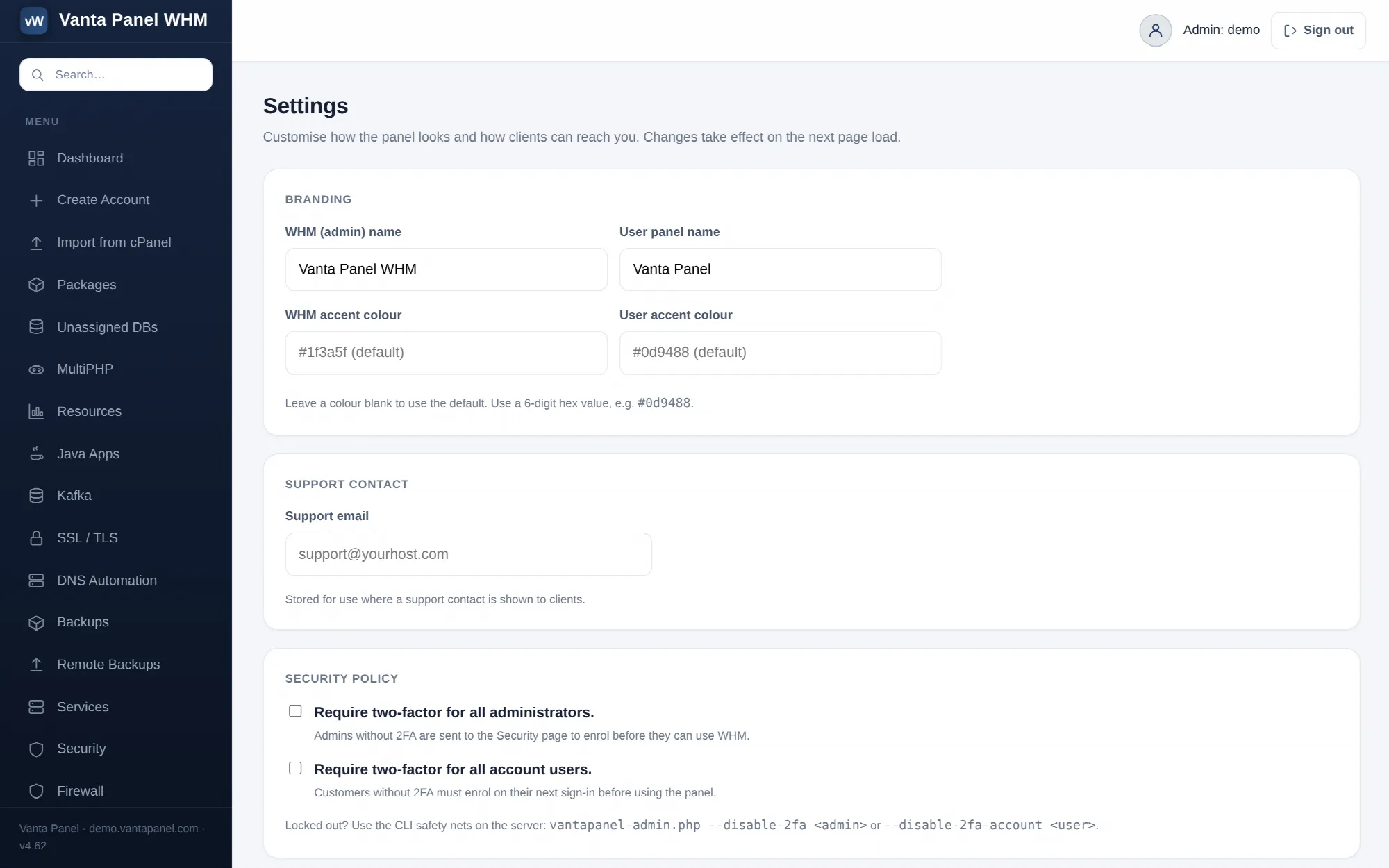 Panel branding, security policy and server alert settings in vWHM.
Settings (vWHM → Settings) holds the server-wide panel configuration: what the two panels are called and coloured, the support contact shown to clients, the two-factor policy, and the server alert engine. Everything on the page is one form with a single Save settings button. Changes take effect on the next page load.
Branding
- WHM (admin) name and User panel name — up to 40 characters each. These replace the default product names in the panel chrome, so customers see your brand rather than Vanta Panel.
- WHM accent colour and User accent colour — a 6-digit hex value each, for example
#0d9488. Anything that is not exactly six hex digits after a#is rejected with an error rather than silently ignored. Leave a field blank to use the default.
Support contact
A single Support email, validated as an email address. It is stored for use wherever a support contact is shown to clients, and it doubles as the fallback recipient for server alerts if you do not set a separate alert address.
Security policy
Two independent switches:
- Require two-factor for all administrators. With this on, any admin who has not enrolled is redirected to vWHM → Security on every request until they do. The Security page and its form stay reachable, so enrolment is always possible.
- Require two-factor for all account users. Customers without two-factor must enrol on their next sign-in before they can use vPanel.
Both are recorded in the audit log as settings.update, with the on/off state of each in the detail column.
If you lock yourself out, there are command-line escape hatches on the server:
vantapanel-admin.php --disable-2fa <admin>
vantapanel-admin.php --disable-2fa-account <user>
See Admin access control for the admin side of two-factor and the IP allow-list.
Server alerts
Off by default. When enabled, the server emails you when something needs attention instead of you having to notice it.
Send alerts to — the recipient. Leave it blank to use the support email above. If neither is set, the engine does nothing.
Thresholds:
| Setting | Default | Accepted range |
|---|---|---|
| Disk alert at | 90% | 50–99 |
| Memory alert at | 95% | 50–99 |
| CPU load alert at | 90% | 50–300 |
| Warn before SSL expiry | 14 days | 0–60, where 0 turns it off |
| Re-notify cooldown | 12 hours | 1–168 |
Values outside a range are clamped to it rather than rejected.
CPU load is expressed as a percentage of the core count, so 100% means the 1-minute load average equals the number of cores and 200% means twice that. Values above 100 are meaningful and do fire: on a four-core server a threshold of 150% alerts at a load of 6. Pick a value above 100 if short bursts to full utilisation are normal for your workload and you only want to hear about sustained overload. 90 to 150 is the useful range for most servers, and actually fires.
Two additional toggles, both on by default:
- Alert when a core service is down. The engine checks Apache, MariaDB or MySQL, Postfix, Dovecot and OpenDKIM, skipping any that are not installed on the server.
- Alert when a panel update is available.
How alerting behaves
The checks run from the panel's cron job, which ticks every five minutes. Each condition is tracked individually:
- A newly-firing condition sends an email immediately.
- A condition that is still firing re-notifies at most once per cooldown window. The default 12 hours means a disk that stays full emails you twice a day, not every five minutes.
- When a condition stops firing, a single Resolved email is sent and its state is cleared.
- If the email itself fails to send, the last-notified timestamp is deliberately not saved, so the alert is retried on the next tick instead of being silently swallowed.
Alerts are sent through Brevo if a Brevo API key has been saved (that key lives on vWHM → DNS Automation, not on this page), and fall back to the server's local mail transport otherwise. The whole engine is wrapped so that a mail failure never breaks the cron run.
Send a test alert now, below the form, sends one immediately so you can confirm delivery. Next to it, when the engine has run at least once, is the timestamp of the last check in UTC.