
File Manager
Browse, edit, upload and archive your files in the browser. Covers every operation and keyboard shortcut, the two upload limits that apply (500 MB in the panel, 64 MB in PHP by default), the 2 MB cap on downloads and the editor, and protected home entries.
On this page 9 sections
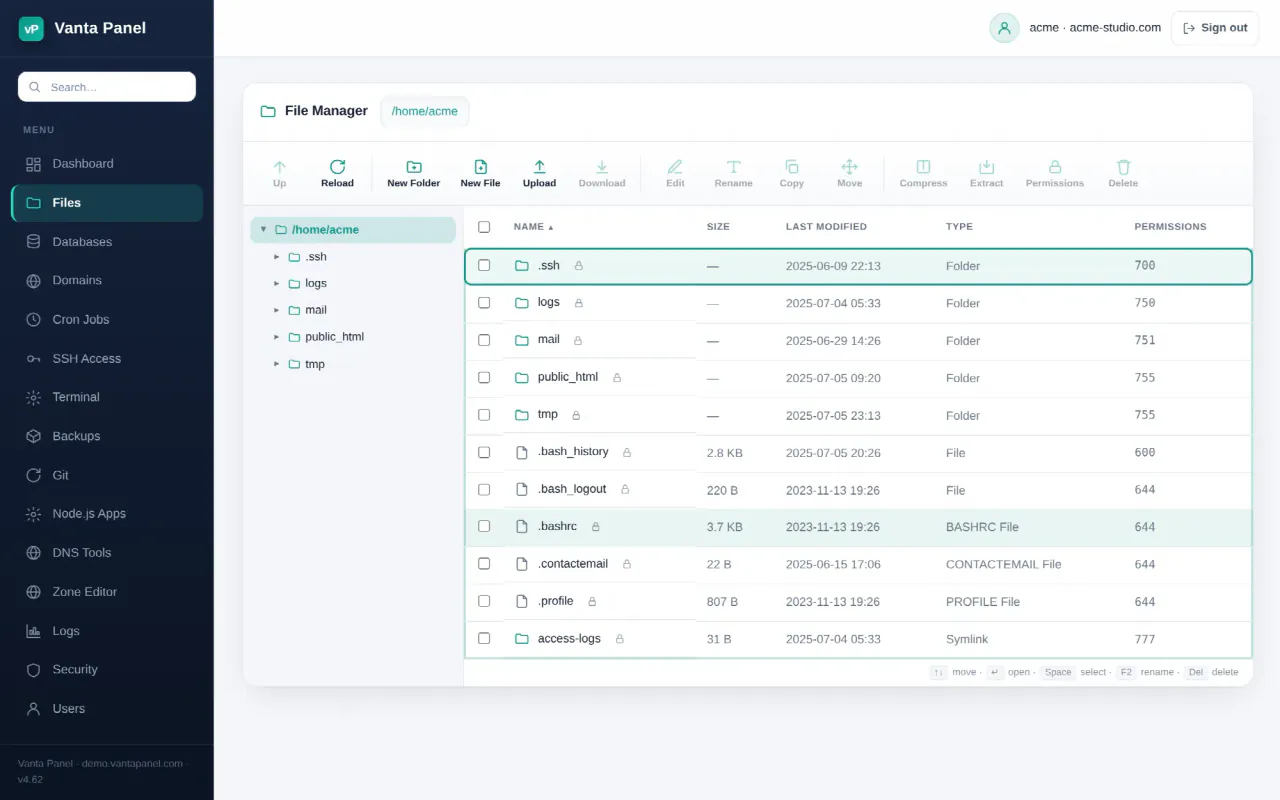
The File Manager (vPanel → Files) manages your account's files in the browser. It has a folder tree, breadcrumbs, sortable columns, multi-select, a right-click context menu and drag-to-move, and it is fully keyboard-driven. Every operation runs as your own Linux user and is confined to your home directory.
What you can do
Browse folders and open files. New file, new folder, rename, move (drag items onto a folder, or use the Move action), copy, change permissions, compress, extract, delete, upload and download. Multi-select works for delete, move, chmod and compress.
chmod has a recursive option, which is how you fix a folder tree whose permissions an upload got wrong.
Uploading
Drop files onto the window or use the upload button. A dialog lists every file in the batch with its own percentage bar, alongside an overall percentage, the transfer speed and an estimate of the time left. Files in one batch upload in parallel, not one after another, and the folder listing refreshes once when the whole batch has finished rather than after each file. Anything over the panel's limit is marked too large straight away and never starts.
Large uploads never load the file into memory anywhere along the way: PHP writes it to its upload temp directory, and the privileged worker moves it into place and hands ownership to you. That design is what makes very large uploads possible at all, and it is also why the transfer briefly needs room for the file in two places.
Two limits apply, and the lower one wins
The panel's own limit is 500 MB, set as fm_upload_max in /opt/vantapanel/lib/config.php. A file over it is rejected with a clear message that names the limit.
But the vPanel service runs its own PHP process, and a fresh install starts it with upload_max_filesize=64M. PHP rejects a larger file before the panel ever sees it, so what you get is a bare "Upload error" rather than a helpful message about size. If uploads fail somewhere above 64 MB and the error is unhelpfully vague, this is why.
Raising it is an administrator job on the server, and Vanta Panel ships a script for exactly this so the systemd unit does not have to be edited by hand:
bash /opt/vantapanel/release/vp-apply-limits.sh 512M 520MRun it as root, and call it through bash — the shipped file is deliberately not marked executable. It writes a systemd drop-in that rewrites the service's PHP limits, keeps the rest of the command intact, restarts the service and prints the limits that are now in effect. If the service fails to come back it removes its own drop-in and restarts the old configuration. It is idempotent, so re-running it with the same values changes nothing. post_max_size must stay larger than upload_max_filesize, which is why the two values differ.
For anything genuinely large, transferring over SFTP or FTP avoids the question entirely.
Downloading — one file at a time, up to 2 MB
Downloads go through the same read path as the built-in editor, and they inherit its size limit. A file larger than 2 MB cannot be downloaded here — the attempt fails with "file too large to edit in browser (max 2 MB)".
That is a real limit, not a browser problem, and it is worth knowing before you go looking for a broken button. For anything bigger, use one of these instead:
- SFTP over SSH —
sftp youraccount@yourserver, no size limit. - An FTP account and any FTP client.
- Put the file somewhere under
public_htmland fetch it over HTTPS with a browser orcurl.
Folders cannot be downloaded directly either. Compress the folder first — but note that the resulting archive is subject to the same 2 MB download limit, so this only helps for small folders.
Editing files
Selecting a file and pressing Enter (or choosing Edit) opens it in a plain text editor and Save writes it back. The editor handles files up to 2 MB; larger files are refused with the same message as downloads. That is ample for configuration files, .htaccess, templates and source code, which is what the editor is for.
Archives
Compress builds a .zip or a .tar.gz from whatever you have selected, in the current folder. Selecting a single item names the archive after it; selecting several produces archive.zip unless you name it yourself. A compress that would produce an empty archive is reported as a failure rather than leaving you a useless file — symbolic links are skipped, so selecting only links gets you that error.
Extract unpacks .zip, .tar.gz, .tgz and .tar into a folder named after the archive. Any other format is refused by name. A zip is inspected entry by entry before anything is written, and an entry with an absolute path or a .. component aborts the whole extraction. Every format, zip and tar alike, is then unpacked as your own Linux user rather than as root, so nothing an archive contains can be written outside your own account.
Keyboard shortcuts
- ↑ / ↓ — move the selection; hold Shift to extend it
- PageUp / PageDown — move ten rows
- Home / End — first / last item
- Enter — open a folder, or edit a file
- Backspace — go up one folder
- Space — toggle selection on the current row
- Delete — delete the selection
- F2 — rename
- Ctrl/Cmd + A — select all
- Esc — close the context menu, then clear the selection
Shortcuts are ignored while you are typing in a field and while any dialog is open, so they never fire by accident. A reminder of the main ones sits in the status bar at the bottom.
Deletes ask for confirmation — Enter to confirm, Esc to cancel — for both single and multiple items.
Protected entries
A short list of top-level entries in your home directory cannot be renamed, moved or deleted, from the interface or through the worker: public_html, www, mail, etc, ssl, logs, tmp, cgi-bin, backups, access-logs, .ssh, .cpanel, .htpasswds, .trash, and your shell dotfiles (.bashrc, .bash_profile, .profile, .my.cnf and similar). Your home directory itself is protected too.
These are the directories your hosting depends on. Renaming public_html would take your website offline; removing .ssh would lock out your keys. You can freely work inside all of them — the protection covers the entries themselves, not their contents.
Where your files live
The File Manager starts at your home directory, /home/<your-account>. Three paths under it matter for the web:
public_html— your primary domain's document root. Everything web-visible lives here.public_html/<label>— a subdomain's document root, named after the subdomain's first label.public_html/<domain>— an addon domain's document root, named after the whole domain.
See Websites and Domains for how those document roots are created. Your Apache access and error logs are not in your home directory — read them from vPanel → Logs instead.
Security
Every path is resolved to its real location before it is used, and rejected if it lands outside your home — which defeats both ../ traversal and symbolic links pointing elsewhere. Every file operation then runs as your own Linux user, not as root and not as the web server, so file ownership stays correct and the operating system enforces the same limits it would over SSH. There is nothing you can do in the File Manager that reaches outside your own account.
Something missing or out of date? Ask support, or try it yourself on the live demo.