 Vanta Panel
Changing Your Password
Change your hosting account password in vPanel. It updates your panel login and your SSH/SFTP system password together, and signs out every other session.
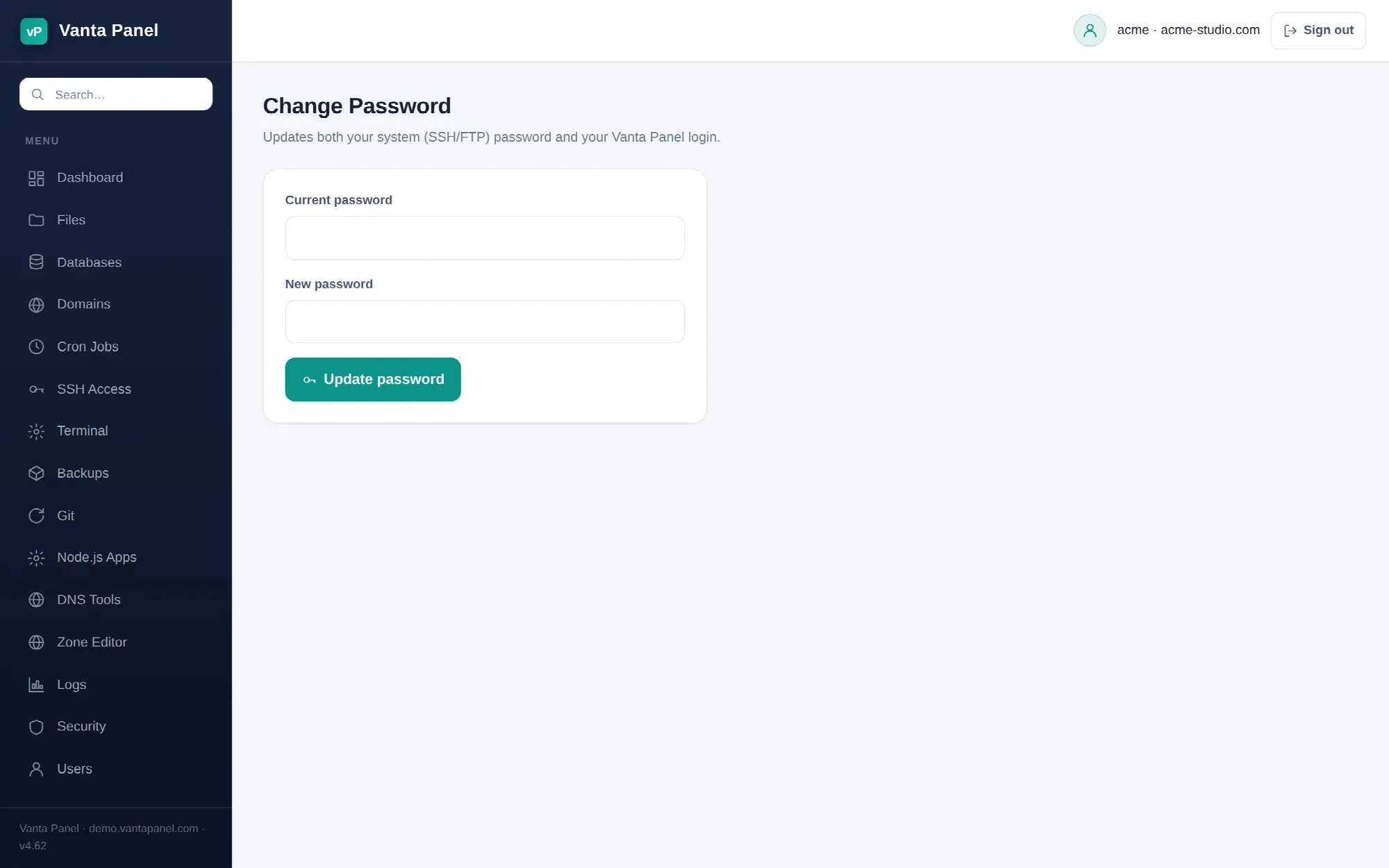 Changing your account password in vPanel.
Change Password (vPanel → Dashboard → Preferences → Change Password) updates the password for your hosting account. It changes two things at once, which is the part worth knowing.
One password, two systems
Submitting the form sets:
- Your panel login — the password you type at
/vpanel. - Your Linux system password — the one used for SSH, SFTP and FTP as your account user.
They are kept in step deliberately, so there is only ever one account password to remember. There is no way to change one without the other from this page.
Using the form
Enter your current password, then the new one. The new password must be at least 8 characters. The current password is verified against your panel login before anything is written; if it is wrong nothing changes and neither password is touched.
If the system password cannot be set — for example because the account has been suspended at the operating-system level — the panel reports the failure and leaves your old password in place rather than leaving the two out of sync.
Other sessions are signed out
Changing your password evicts every other signed-in session for the account. The browser you made the change in stays signed in; anything else — another laptop, a phone, a session you forgot about — is signed out the next time it makes a request.
That makes this page the right first move if you think someone else has your password. Change it, then check the recent sign-ins list on the Security page and turn on two-factor authentication.
What it does not change
- Email passwords. Mailboxes have their own passwords, managed in Email.
- FTP account passwords. Extra FTP logins are separate and are managed on the FTP Accounts page.
- Database user passwords. Managed in Databases.
- Authorised SSH keys. Key-based logins do not use a password at all, so changing it does not revoke them. Remove the key from SSH Access instead.
Delegated logins
If you signed in as account+username — an extra login created in the User Manager — this page behaves differently. It changes only your delegated password, with a minimum of 10 characters, and never touches the account password or the Linux system user. The account owner's password and SSH access are unaffected.
If you have forgotten it
There is no self-service reset. The server administrator can set a new password for your account from vWHM → Accounts → the account → Login & password. Contact whoever runs the server.