 Vanta Panel
Server Backups and Schedules (vWHM)
Per-site full and database-only backup schedules in vWHM: frequency, retention, staggered runs, the pre-flight disk check and archive verification, reading the status badges, immediate restores, and customer self-service control.
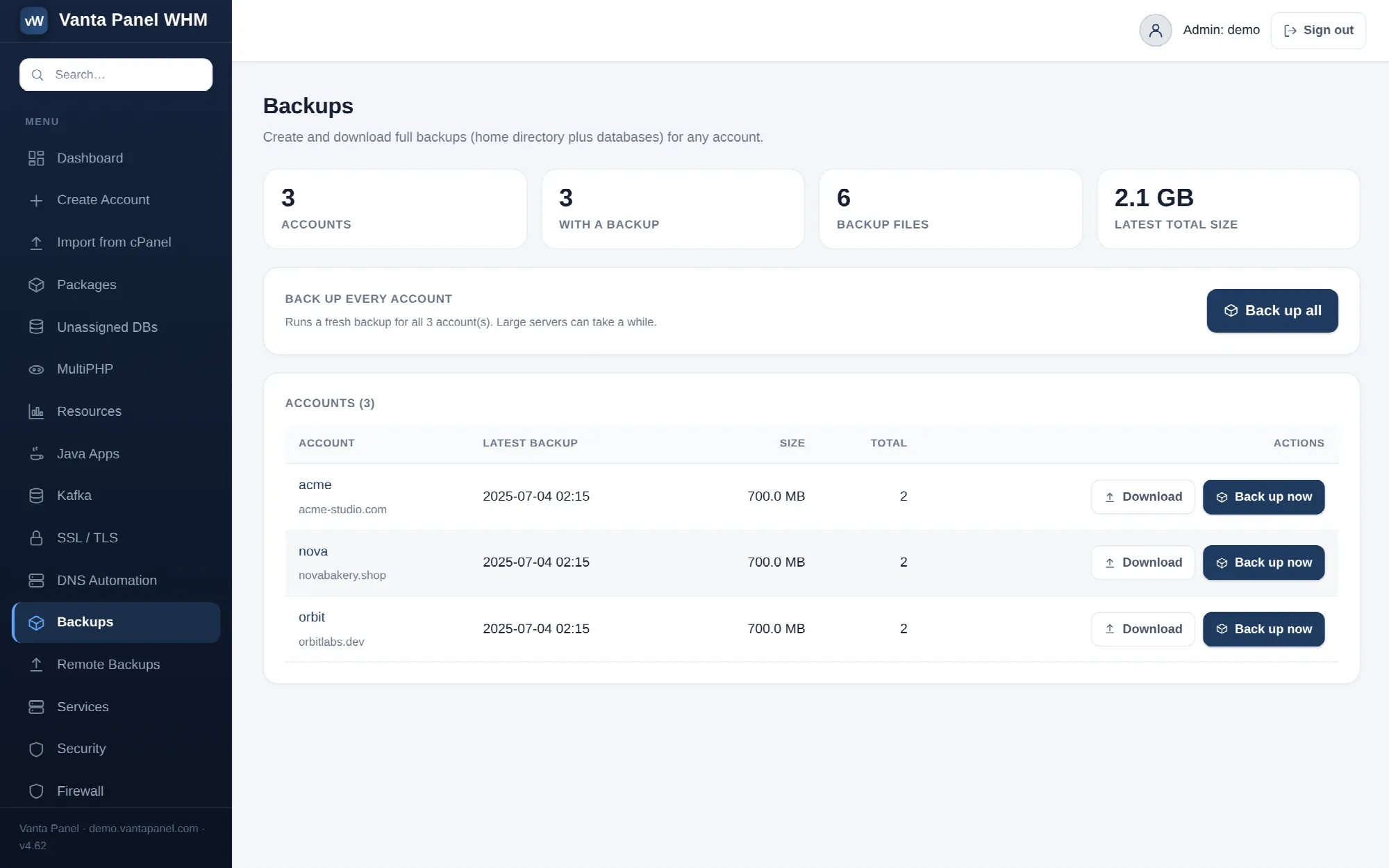 Per-site backup schedules and status in vWHM.
Backups (vWHM → Backups) is the server-side view of every account's backups. From one page you set each site's schedule, run a backup or a restore immediately, see whether the last run succeeded, and decide which customers may manage their own backups in vPanel.
The strip at the top counts your accounts, how many have at least one backup on disk, how many backup files exist in total, and the combined size of each account's newest archive.
Two kinds of schedule
Each account has two independent schedules, side by side.
Full site backup — files plus databases, in one .tar.gz in /home/<account>/backups. Keeps the most recent 3.
Database-only backup — one gzipped dump per database in /home/<account>/backups/db, named <database>_YYYY-MM-DD_HHMMSS.sql.gz. Keeps the most recent 10 per database. Dumps are taken with --single-transaction --quick --routines --triggers --events, so unlike the dumps inside a full backup these also carry triggers and scheduled events.
Run a database-only schedule several times a day and a full schedule weekly, and you get cheap frequent recovery points for the data that changes plus a complete restore point for everything else.
For each schedule you choose:
- Daily with a number of runs per day (1–24, spread evenly across the day)
- Weekly with the specific weekdays ticked
- Monthly with specific days of the month (1–28)
- A run hour for weekly and monthly schedules
- Send to remote destination(s) — off unless at least one destination is active
Start times are staggered per account automatically, so enabling daily backups on forty sites does not start forty tar processes in the same minute. The line beside Save schedule shows the next run time for both schedules.
How runs are executed
A runner fires every five minutes and evaluates every schedule. For each due job:
- It takes an exclusive per-account, per-kind lock, so a long backup cannot overlap with the next tick. If a prior run died, the lock clears itself — there are no stale locks to clean up. A skipped tick is logged.
- Space is checked before anything is written. A full backup refuses to start if free disk space is under 1.2× the size of the account, and records how much it needed versus how much was free.
- The archive is verified with
gzip -tbefore old backups are rotated. A corrupt archive is deleted and nothing else is touched, so a bad run can never displace a good backup. - Only then does retention prune the older copies.
- Suspended accounts are skipped.
The archiving step and the database-only dumps run at low CPU and disk priority, so a backup does not starve the live sites on the box.
Logs land in /var/log/vantapanel-cron.log, one line per job with the resulting file, its size and how many copies were pruned. That is the first place to look when a schedule is not behaving.
Reading the status badges
Each account collapses to a summary row carrying its schedule and its last result. Accounts with a problem are expanded automatically and their border turns amber, so a failure cannot hide behind a collapsed row.
| Badge | Meaning |
|---|---|
| ✓ last ok | The backup completed and was verified, with its size |
| ⚠ last run failed | The backup itself failed — nothing usable was produced |
| ⚠ remote transfer failed | The local backup is fine, but the off-site copy did not go |
The distinction between the last two is the point. A remote-transfer failure means you still have a backup, but only on the machine you are protecting against — so it is treated as alert-worthy rather than as a success. Expanding the row shows the recorded reason and the time it happened.
An email goes to your alerts address (vWHM → Settings, falling back to the support address) on both a hard failure and a transfer failure. Fix the cause, then use Full backup now or DB backup now on the row to retry immediately.
Immediate actions per account
- Full backup now and DB backup now run synchronously with the same space check and verification as a scheduled run.
- Download latest streams the newest archive for that account.
- Restore latest restores the account from its newest backup, with a live progress bar through extract, copy, permission fix and database import. It overwrites the account's current files and databases and asks for confirmation first. The restore recreates and re-grants each database before importing, so it works even when the database has been dropped entirely.
Back up every account at the top of the page runs a fresh full backup for all accounts in sequence, and reports how many succeeded and how many failed. On a busy server this takes a long time — prefer schedules.
Restores and schedule changes are written to the audit log with the administrator who made them.
Customer self-service backups
The Customer self-service backups (vPanel) card controls whether customers see a Backups page in their own panel — where they can create, download, schedule and restore, and a customer restore overwrites their live files and databases.
Set the server-wide default with Allow by default / Block by default, then override it per account with the vPanel self-service dropdown on that account's row: Default, Allowed or Blocked. The card shows how many accounts can currently self-serve. Each row carries a badge so you can scan the whole server for accounts with an unexpected setting.
Blocking self-service does not stop scheduled backups — it only removes the customer's page.
Non-payment enforcement
If the server's management licence lapses, backup creation pauses from phase 1 of the lapse ladder onward: scheduled runs stop, and a customer pressing Generate backup gets a message saying backups are paused. Restores are never blocked, and everything else the runner does — Trash pruning, alerts, mail-certificate renewal — keeps working. vPanel shows customers an amber notice explaining the situation, and the cron log records that backups are paused and for how many days. See Activating Your License.
Related pages
- Remote Backups — off-site destinations, testing them, and pulling an archive back.
- Backups (vPanel) — the customer-facing page, what an archive contains and what it does not.