 Vanta Panel
Spam Filters
Set the SpamAssassin score threshold and what happens to flagged mail. What the panel stores per account, what the server-wide scanner actually does, and the filter rule that gives you a Junk folder you control.
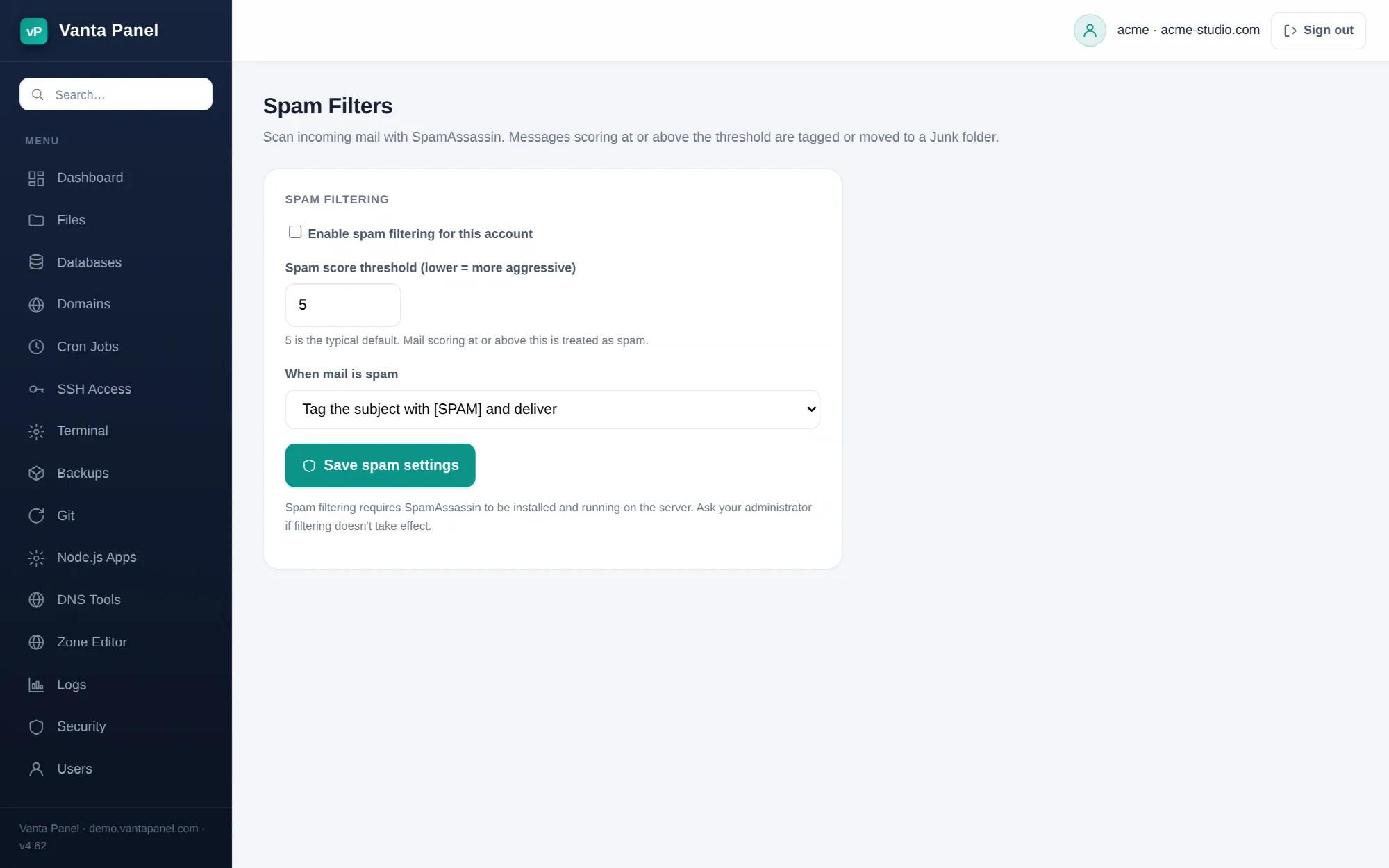 Spam filter settings in vPanel.
Spam Filters (vPanel → Spam Filters) sets how aggressively incoming mail for your account is treated as spam, and what happens to a message that is. Scanning is done by SpamAssassin, which the Vanta Panel installer sets up as a content filter on the server's incoming SMTP path.
The settings
- Enable spam filtering for this account — the switch.
- Spam score threshold — a whole number from 1 to 20; values outside that range are clamped. SpamAssassin scores each message on accumulated evidence; a score at or above the threshold is what counts as spam, and lower is more aggressive. Read the next section before you rely on this number — the panel stores your choice, but it is the server-wide scanner that applies a threshold.
- When mail is spam — either Tag the subject with
[SPAM]and deliver, or Move to the Junk folder.
5 is the conventional threshold and a good starting point. Going below 3 produces false positives on ordinary mail — receipts, newsletters you asked for, mail with lots of links — and a false positive costs you far more than a spam message in the inbox. If you are getting too much spam at 5, try 4 before anything more drastic.
What the panel stores, and what does the filtering
Saving writes your choices to a per-account settings file on the server (/etc/vantapanel/spam/<account>.conf), which this page reads back. It is your stated preference for the account.
The scanning itself is server-wide. Every message arriving over SMTP is passed through SpamAssassin, which scores it and records its verdict in X-Spam-* headers, using the server's own SpamAssassin configuration. That configuration — not this page — is what decides whether a subject actually gets rewritten or a message is diverted.
In practice: if you look at the source of a suspicious message and see X-Spam headers, scanning is working. If the tagging or the Junk-folder move does not match what you selected here, that part is governed by the server's SpamAssassin setup and only the server administrator can change it. Ask them — and in the meantime use the filter rule below, which is entirely under your own control.
Getting a result you control
An email filter is deterministic, per mailbox, and yours:
- Subject contains
[SPAM]→ Move to folderJunk
That gives you the Junk-folder behaviour regardless of how the server is configured to mark spam. Create the Junk folder in webmail or your mail app before you add the rule — a filter does not create a folder that is missing, and mail aimed at one stays in the Inbox. Do not point that rule at Delete it: you will never know what it ate.
For individual senders, filters are also the right tool — From contains the address, then Move to folder or Delete it. There is no separate allow-list or block-list on this page.
If good mail is being marked as spam
The usual cause is not the threshold but authentication on the sending side, and the same is true of your own outgoing mail being junked by other providers. Before you loosen the filter, check SPF, DKIM, DMARC and reverse DNS on the Email deliverability page.
If nothing is ever marked, SpamAssassin may not be running on the server at all — the panel notes on the page that filtering requires it to be installed and active. The administrator can confirm the service state from vWHM.