
Backups — Create, Schedule & Restore
Create, schedule, download, upload and restore full account backups in vPanel. Exactly what an archive contains and what it leaves out, how retention interacts with your disk quota, and how to genuinely test a restore.
On this page 9 sections
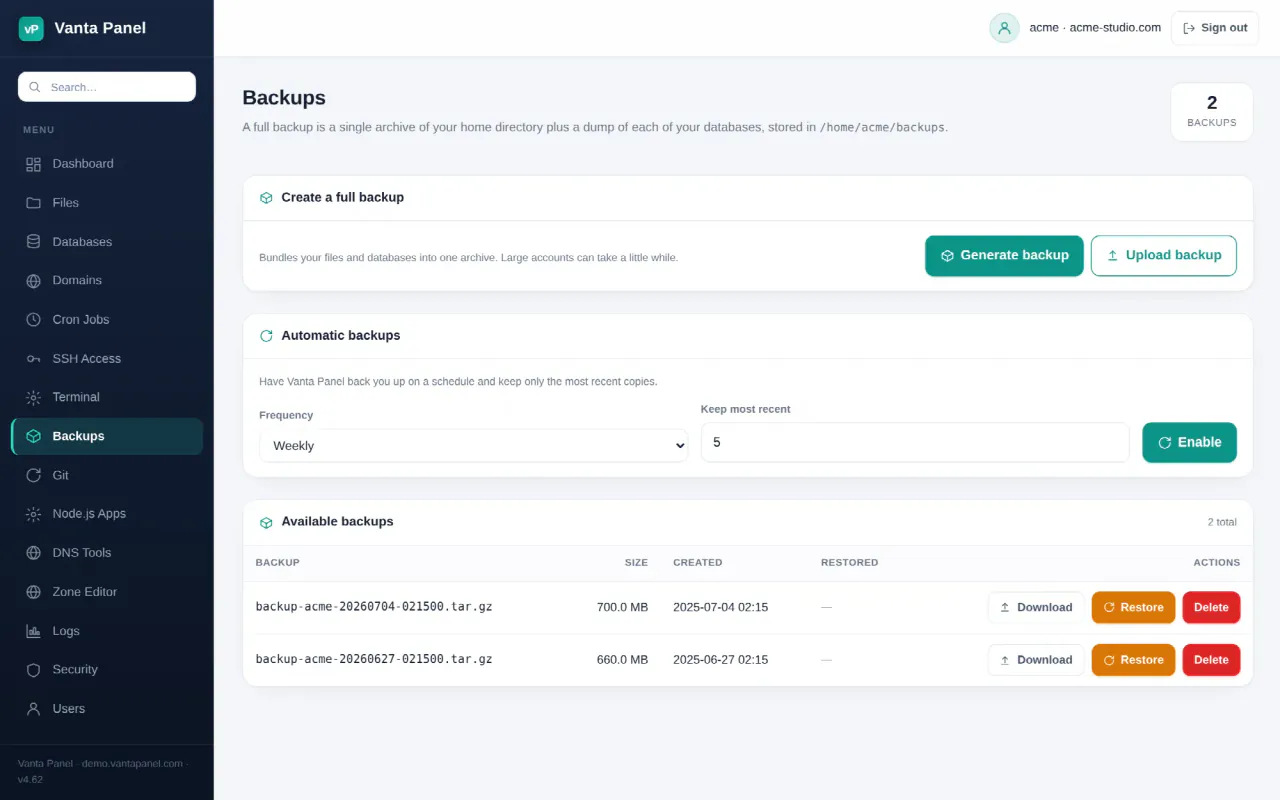
Backups (vPanel → Backups) creates a single archive containing your home directory and a dump of every database on your account, stores it in /home/<account>/backups, and can restore from it. You can also schedule backups, download them, upload one back, and delete the ones you no longer need.
Your server administrator can switch customer self-service backups off, either server-wide or for your account. When it is off, the Backups tile disappears from your dashboard and opening the page sends you back to the dashboard with a message telling you to contact your hosting provider. Backups may still be running on the server side; ask your host for a copy.
What a backup contains
A full backup is one .tar.gz named backup-<account>-YYYYMMDD-HHMMSS.tar.gz. Inside:
- Everything under
/home/<account>— your website files, uploads,.htaccessfiles, SSH keys in~/.ssh, application config, and your mail, because mailbox contents live in the home directory at~/mail/<domain>/<user>. databases/<name>.sql— one plain-SQL dump per database registered to your account, taken withmysqldump --single-transaction --routines. Consistent, and it does not lock your tables while it runs. Each dump carries its ownCREATE DATABASE, so it can rebuild a database that no longer exists.meta.json— the account name and the timestamp. An archive made by a scheduled run, or by an administrator from vWHM, also records the list of databases it contains; one made with the Generate backup button does not. Read thedatabases/folder rather thanmeta.jsonwhen you want to know what is actually inside an archive.
Some paths are left out on purpose, because they are either already-deleted files or they regenerate themselves:
backups— the backup directory itself, so backups never nest inside each other.trash— the File Manager's trash.cachetmp/analog,tmp/awstats,tmp/webalizer,tmp/webalizerftp,tmp/pma_template_compiles_*
What a backup does not contain
This is the part worth reading twice. A backup covers your files and your database contents. Several things that make your hosting work live outside your home directory and outside your databases, and are therefore not in the archive:
- Mailbox accounts, forwarders, filters and autoresponders. The messages are backed up — they are in
~/mail— but the mailbox definitions are panel records, and those are not. Restoring into an account whose mailboxes were deleted gives you the mail files with nothing configured to serve them. - Cron jobs. They live in your system crontab, not your home directory.
- DNS zone records and SSL certificates.
- FTP accounts, your PHP version selection, your subdomain and addon-domain definitions, and your panel login.
- MySQL users and their grants. The dumps rebuild the data; they do not recreate the application user that connects to it.
So a full backup is strong protection against the common disasters — a bad deployment, a wiped public_html, a truncated table, a plugin update that breaks the site. It is not a one-click rebuild of an entire account from nothing. If you are migrating or rebuilding, expect to re-enter mailboxes, cron jobs and DNS.
Creating a backup now
Generate backup starts the job and opens a progress window showing the phase (dumping databases, then archiving files), a percentage, the elapsed time, and a running list of the files going in. Leave the page open until it finishes — the count comes from a live file list, so the percentage reflects real work rather than a fake spinner.
Large accounts take a while. This interactive path runs at normal priority, so on a busy site prefer a schedule — scheduled runs, and the ones an administrator starts from vWHM, are niced down so they do not compete with your live traffic.
Automatic backups
Under Automatic backups, choose Daily or Weekly, set Keep most recent, and enable. The server checks for due schedules every five minutes, and start times are staggered per account so every site on the machine does not begin backing up at the same moment.
Retention has a floor. The panel never keeps fewer than three full backups, whatever you type in the keep field — asking for 1 or 2 still keeps 3. Higher numbers are honoured, up to 60. Pruning happens after a new backup has been created and checked, so a failed backup can never cause a good one to be deleted.
The page shows the frequency, the keep count and the time of the last run. It does not show whether that run succeeded — the result is recorded on the server side and shown in vWHM, so ask your administrator if a run looks like it was skipped. Turning automatic backups off keeps the schedule row, so anything your administrator configured — including a separate database-only schedule and the run history — survives being switched off and on again.
Retention and disk space
Backups live in your home directory, and they count against your disk quota. That is the trade-off to plan for: keeping ten copies of a 4 GB account needs 40 GB of space you are not using for anything else.
Two mechanisms keep this from ending badly:
- Pruning. Once a backup completes, the oldest ones past your keep count are deleted.
- A pre-flight space check. A scheduled backup refuses to run when free disk space is below 1.2× the size of the account, and reports how much it needed against how much was free. A backup will not be the thing that fills the disk and takes your site down.
Scheduled backups also verify the finished archive with gzip -t before older ones are rotated away, so a corrupt archive is discarded rather than kept in place of a good one.
If you are tight on space, drop your keep count to 3, or download older backups and delete them from the server. Downloading is what actually protects you against a dead disk — a backup stored on the same machine as the original does not survive that machine.
Downloading and uploading
Download streams the archive to you. Keep at least one copy somewhere else.
Upload backup puts an archive back on the server so you can restore from it. The filename must be exactly the name the panel gave it — backup-<account>-YYYYMMDD-HHMMSS.tar.gz, with your own account name. A renamed file, or one belonging to a different account, is rejected. There is an upload size limit; the dialog shows the current one.
Restoring
Restore on any row starts a restore and shows the same live progress window, moving through extracting files, copying them into place, fixing permissions, and importing databases.
What a restore actually does:
- Files are merged, not swapped. The archive is extracted to a staging area and copied over your home directory. A file in the backup replaces the live file of the same name. A file that exists now but was not in the backup is left in place, not deleted. If you are recovering from a compromise that matters: a restore does not remove files an attacker added. For that, clear the directory first, then restore.
- Ownership and permissions are reset across your home directory to the standard web-safe layout — directories readable and traversable, files readable, your home itself
711, and thebackupsdirectory kept private. This step exists because a restored tree can otherwise carry modes the web server cannot read, which shows up as a 500 error on a site that was working a minute earlier. - Databases are recreated and re-granted, then imported. For each dump in the archive the panel creates the database if it is missing, re-grants your scoped panel user on it, and imports. That ordering is deliberate: the most common reason to restore is that a database is gone, and an import that tried to connect to a missing database first would simply fail. Data in a database that still exists is overwritten by the dump.
- Each row shows whether that backup has been restored before and whether the restore succeeded, so you can see at a glance which archive you last recovered from.
Restoring overwrites live data and there is no undo. Take a fresh backup first if the current state holds anything you might want back.
Actually testing a restore
An untested backup is a guess. Test yours — it takes ten minutes, and it is the only way to know.
- Check the archive is readable. Download it and list it locally:
tar -tzf backup-<account>-20260101-030000.tar.gz | head -40. You should seehome/<account>/...entries plusdatabases/andmeta.json. Iftarreports a corrupt archive, stop and investigate — that file is not a backup. - Confirm the pieces you care about are inside.
tar -tzf <file> | grep public_html/wp-config.phpandtar -tzf <file> | grep '^databases/'. Check the database list matches what you expect; a database created outside the panel and never adopted will not be there. - Check a dump is real.
tar -xzOf <file> databases/<name>.sql | head -30. You wantCREATE DATABASEandCREATE TABLEstatements — not an empty file, and not an error message that got captured instead of data. - Do a real restore somewhere harmless. This is the honest test. Ask your host for a scratch account, or restore into a local MySQL and web root. Then load the site and log in. A restore is only proven when the restored copy works.
- Then verify a scheduled run. After enabling automatic backups, come back the next day and confirm the last-run time moved and the result was a success — not merely that the schedule is switched on.
Do step 4 once now, and repeat it after any significant change to your stack.
Related pages
- Databases — its Trash is a separate 30-day safety net for a single deleted database.
- File Manager — for pulling one file out of a downloaded archive.
- Disk Usage — see how much of your quota the backups folder is taking.
Something missing or out of date? Ask support, or try it yourself on the live demo.