
One-Click App Installers
Install WordPress, Joomla or Microweber in one click - the database is created and the setup wizard completed for you. Covers install locations, the admin credentials shown only once, updating and password-resetting WordPress, and what removing an application deletes.
On this page 7 sections
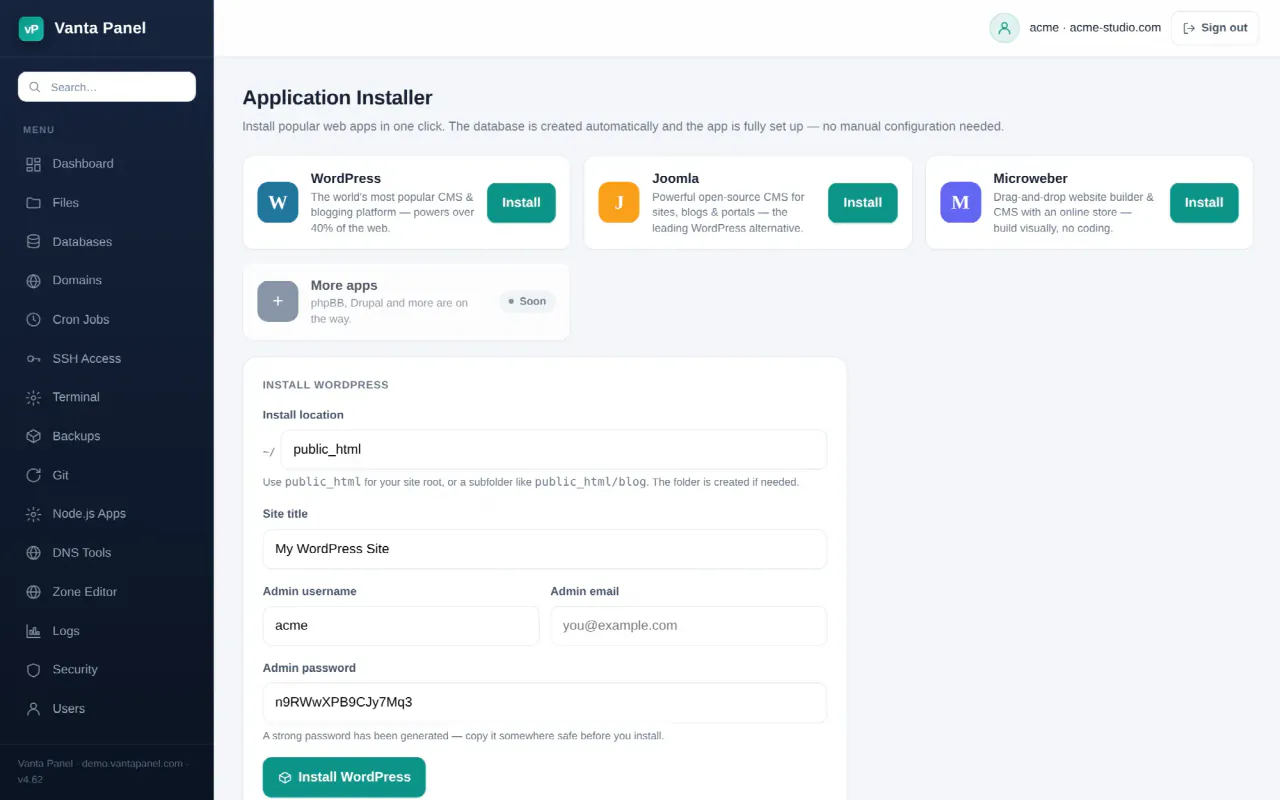
Application Installer (vPanel → Dashboard → Software & Advanced → Application Installer) installs a web application, creates its database, and finishes its setup wizard for you. You fill in an admin username, email and password, press the button, and what comes back is a working site you can log straight into — no browser install step, no wp-config.php to edit.
What can be installed
Three applications, and only three:
| Application | Admin URL after install | Notes |
|---|---|---|
| WordPress | /wp-admin/ | Admin password must be at least 8 characters. Can be updated and have its admin password reset from this page afterwards. |
| Joomla | /administrator/ | Joomla 5.4 LTS. Admin password must be at least 12 characters — Joomla's own requirement. |
| Microweber | /admin | A drag-and-drop site builder with a store. Needs a one-time server-side setup by your administrator before it appears as installable. |
The gallery on the page also shows a greyed-out More apps card mentioning phpBB and Drupal as "Soon". That card is a roadmap note. phpBB and Drupal cannot be installed — the installer rejects anything that is not one of the three above.
Installing
Install location is relative to your home directory. public_html puts the application at the root of your primary domain; public_html/blog puts it at https://yourdomain.com/blog. The folder is created if it does not exist.
Admin username may be 3–60 characters from letters, numbers, _, . and -. Admin email must be a valid address, and it defaults to the contact address on your hosting account. Admin password comes pre-filled with a freshly generated strong password.
Copy the password before you press install. Afterwards it is shown once more on the confirmation card, and never again — the panel does not keep a copy you can read back.
Installing onto a subdomain or addon domain
You can, but understand what the installer does with the URL first. The site URL it configures the application with is always your primary domain plus the subpath you installed into — it does not look at which domain's document root that folder happens to be.
A subdomain's document root is ~/public_html/<label> and an addon domain's is ~/public_html/<domain>, so installing into public_html/blog gives you an application that is reachable at both https://yourdomain.com/blog and https://blog.yourdomain.com — but configured for the first of the two. For WordPress that means it will redirect visitors from the subdomain to the path URL.
If you want the application to live on the other hostname, install it and then change its own site URL — WordPress Settings → General, or Joomla's $live_site — to the hostname you actually want. Everything else about the install is correct either way.
What happens during an install
- A dedicated database and MySQL user are created, both named from your account plus a short random suffix, with a 20-character generated password.
- The database is registered to your account, so it appears on the Databases page and in phpMyAdmin.
- The application is downloaded, unpacked into your folder, and configured against that database.
- The setup wizard is completed non-interactively using the admin details you gave.
- The confirmation card shows your site URL, admin URL, username and password.
If any step fails, the database and its user are dropped again and the registration is removed, so a failed install does not leave orphans behind. The error message includes the underlying reason.
One special case worth knowing: Microweber runs on PHP 8.2 or 8.3 and not on 8.4 or newer. If this server's PHP is newer than that, the installer switches your account onto PHP 8.3 (or 8.2) automatically after installing, and tells you so. If neither is installed on the server it says clearly that the site will not load until your administrator installs php8.3-fpm. See PHP Version Management.
Managing an installed application
Each install is listed with its version, its URL, its folder, its database and its install date, and buttons to match:
- Visit and Admin open the site and its admin area.
- Update (WordPress only) updates WordPress core to the latest release. Take a backup first.
- Reset password (WordPress only) generates a new password for the first administrator account and shows it once. Useful when you are locked out of a site whose email no longer works.
- Remove deletes the application's files and drops its database. The confirmation says so because it is permanent — everything the site contained goes with it. The panel verifies the database belongs to your account before dropping it.
An install whose folder has gone missing is flagged files missing rather than silently disappearing from the list, so you can see the leftover database and clean it up.
After installing
From here on you manage the application through its own admin area: themes, plugins, extensions, content, users. Vanta Panel's job is done at install time.
The rest of the panel still applies. Your files are in the File Manager. Its database is on the Databases page and reachable through phpMyAdmin. Add HTTPS from the Domains page. Set up the application's scheduled tasks with Cron Jobs — WordPress's own wp-cron only fires when someone visits the site, so a real cron entry is more reliable for a quiet site.
Installing something else
The one-click list is deliberately short. Anything else installs the ordinary way, and the panel gives you everything you need for it: create a database on the Databases page, upload the code with the File Manager or clone it with Git, then run its installer in the browser or from the Terminal. For applications that are not PHP at all, see Node.js, Python and Java app hosting.
Something missing or out of date? Ask support, or try it yourself on the live demo.