 Vanta Panel
Off-Site Backup Destinations (vWHM)
Copy backups off-server to S3-compatible storage, SFTP, FTPS, FTP or WebDAV. Covers per-site folders, retry and retention behaviour, the 4 GiB S3 multipart threshold, and pulling an archive back to restore it.
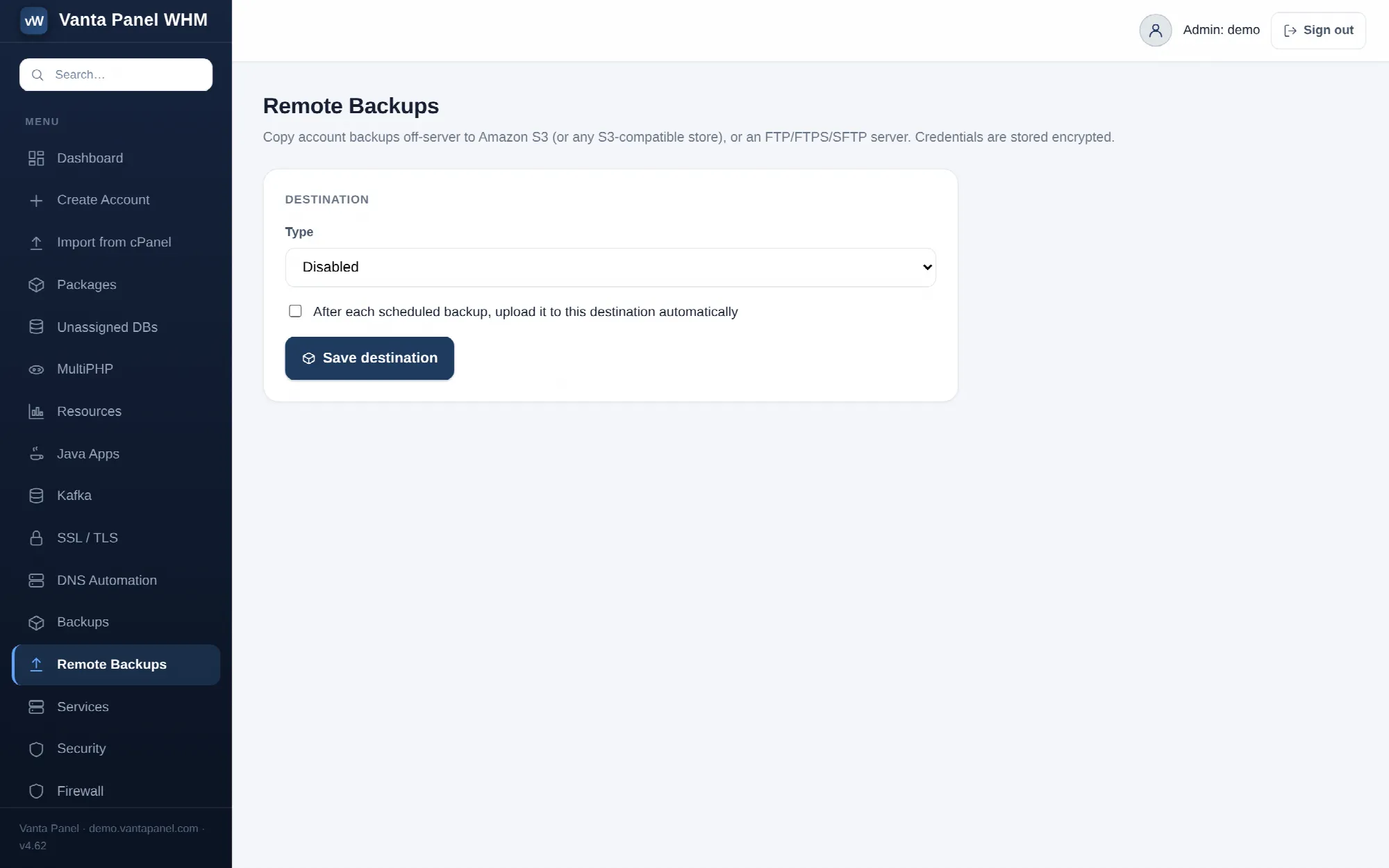 Configuring off-site backup destinations in vWHM.
Remote Backups (vWHM → Remote Backups) copies account backups off the server, to one or more destinations. A backup that only exists on the machine it protects does not survive that machine — this is the page that fixes that.
You can define several destinations and have every backup go to all of them. Credentials are encrypted before they are stored and are never displayed again.
Supported destination types
| Type | Notes |
|---|---|
| S3 / S3-compatible | Amazon S3, Backblaze B2, Cloudflare R2, Wasabi, Contabo, DigitalOcean Spaces, Google Cloud Storage, Storj, MinIO |
| SFTP | Over SSH; password or a private key |
| FTPS | FTP over explicit TLS |
| FTP | Plain FTP — credentials and data in clear text; private networks only |
| WebDAV | Nextcloud, ownCloud, or any WebDAV server |
Choosing a type reveals only the fields it needs, and choosing an S3 provider fills in the right endpoint and shows that provider's exact setup steps — which bucket screen to use, which key is the access key, and what the region looks like. Read that panel rather than guessing; the naming differs between providers.
Adding a destination
Give it a Name (this is what appears in the status badges and alert emails, so make it recognisable — "Backblaze nightly" beats "S3"), tick Active, and fill in the type-specific fields.
- S3 — bucket, region, access key ID, secret access key, an optional path prefix, and an optional custom endpoint for anything that is not Amazon.
- SFTP / FTPS / FTP — host, port (22 for SFTP, 21 for FTP/FTPS), username, and either a password or, for SFTP, a private key pasted into the SSH key box. Remote directory optional.
- WebDAV — the full WebDAV URL (in Nextcloud, Files → Settings shows it), your username, and an app password rather than your login password. An optional subfolder is created for you.
When editing a destination, leaving the password or key field blank keeps the stored one. You only retype a secret when you are actually changing it.
Test checks that the destination is reachable and writable — for S3 it writes a tiny object named .vanta-write-test (which may be left behind in the bucket), for WebDAV it issues a PROPFIND, and for FTP-family destinations it lists the target directory. Test is rate-limited to a dozen attempts a minute so it cannot be used to probe the internal network.
Active is the switch that matters. The per-site Send to remote destination(s) option in Backups stays disabled until at least one destination is active, and only active destinations receive pushes.
How files are laid out at the destination
Each website gets its own subfolder under the remote directory or S3 prefix: <remote_dir>/<account>/. That keeps one site's archives separate from another's and lets retention work per site.
Full backups keep their backup-<account>-YYYYMMDD-HHMMSS.tar.gz name; database-only dumps keep <database>_YYYY-MM-DD_HHMMSS.sql.gz.
Archives written by older versions sit flat at the destination root. The listing tool below still lets you reach them — see the destination root (legacy) option.
How a push behaves
When a scheduled backup has remote transfer enabled, the local archive is created and verified first, then pushed.
- The local copy is always kept, whatever the remote outcome. A failed upload never costs you the backup you just made.
- Each push is retried up to three times, with a 2-second then 4-second wait between attempts.
- Uploads have a 15-minute per-transfer ceiling.
- S3 objects of 4 GiB or larger are uploaded multipart, in 256 MiB parts. A single S3
PUTis capped at 5 GiB and rejecting one comes back as a confusing HTTP 400, so the threshold sits below the limit with headroom rather than on it. If any part fails, the whole multipart upload is aborted cleanly rather than leaving billable half-finished parts in your bucket. - After a successful push, remote retention mirrors the local policy inside that site's subfolder: the newest full backups up to the site's keep count (never fewer than 3), and the newest 10 dumps per database. Off-site storage does not grow forever. A delete that fails never fails the backup.
If a push fails, the account's row in vWHM → Backups shows ⚠ remote transfer failed with the destination name and the reason, and an email goes to your alerts address. The local backup is still marked as good — because it is — but the off-site gap is reported rather than hidden behind "last ok".
Pushing on demand
Upload a backup now lists every account with a Push latest button that sends that account's newest existing archive to every active destination. It reports how many destinations succeeded and names the ones that did not. It does not create a backup — make one first on the Backups page.
Getting an archive back
On the remote destination → Fetch remote listing reads what is actually at the destination. It lists your first active destination, not all of them — if you push to several and need to inspect a different one, deactivate the ones ahead of it temporarily. Because each site now has its own subfolder, pick the Website folder to list; the blank option lists the destination root for archives from older versions.
The table shows each archive, the account it belongs to (parsed from the filename), its size and its modification time. Accounts that no longer exist on this server are flagged missing and offer no actions — create the account first. Database dumps stored at the destination are counted in a note but are not individually restorable from this list; restore a full site to recover its databases.
Two actions per archive:
- Pull downloads it into the owning account's
~/backupsdirectory. The download goes to root-only staging first and is checked withgzip -tbefore it is accepted, so a truncated or corrupt transfer never lands in a customer's home as a usable-looking backup. From there you can restore it like any local backup. - Pull & restore does the same and then immediately starts a restore, with a live progress bar through extract, copy, permission fix and database import. It overwrites that account's current files and databases and asks for confirmation first.
The account is derived from the filename, so an archive can only ever be pulled into the account it came from. Remote restores are written to the audit log with the administrator who ran them.
Practical advice
- Use two destinations if the data matters — for example one object store and one SFTP box, ideally with different providers. A single destination is a single point of failure, and this page supports several at no extra effort.
- Prefer SFTP or S3 over plain FTP. Plain FTP sends your credentials and your customers' data in clear text.
- Scope the credentials. Create an application key restricted to the one bucket, or an SFTP user that can only write to the backup directory. If the server is compromised, those credentials are readable on it.
- Test the whole loop once. Push an archive, then pull it back into a scratch account and restore it. Testing the connection proves the destination is writable; testing a pull-and-restore proves the backups are usable.
- Watch for the amber badge. A remote-transfer failure is easy to ignore because the site is fine. It means your off-site protection has stopped, which is exactly the protection you cannot recreate after a disk failure.
Related pages
- Backups (vWHM) — schedules, retention, per-site status and immediate restores.
- Backups (vPanel) — what an archive contains, and how to test a restore.